What This Error Actually Means
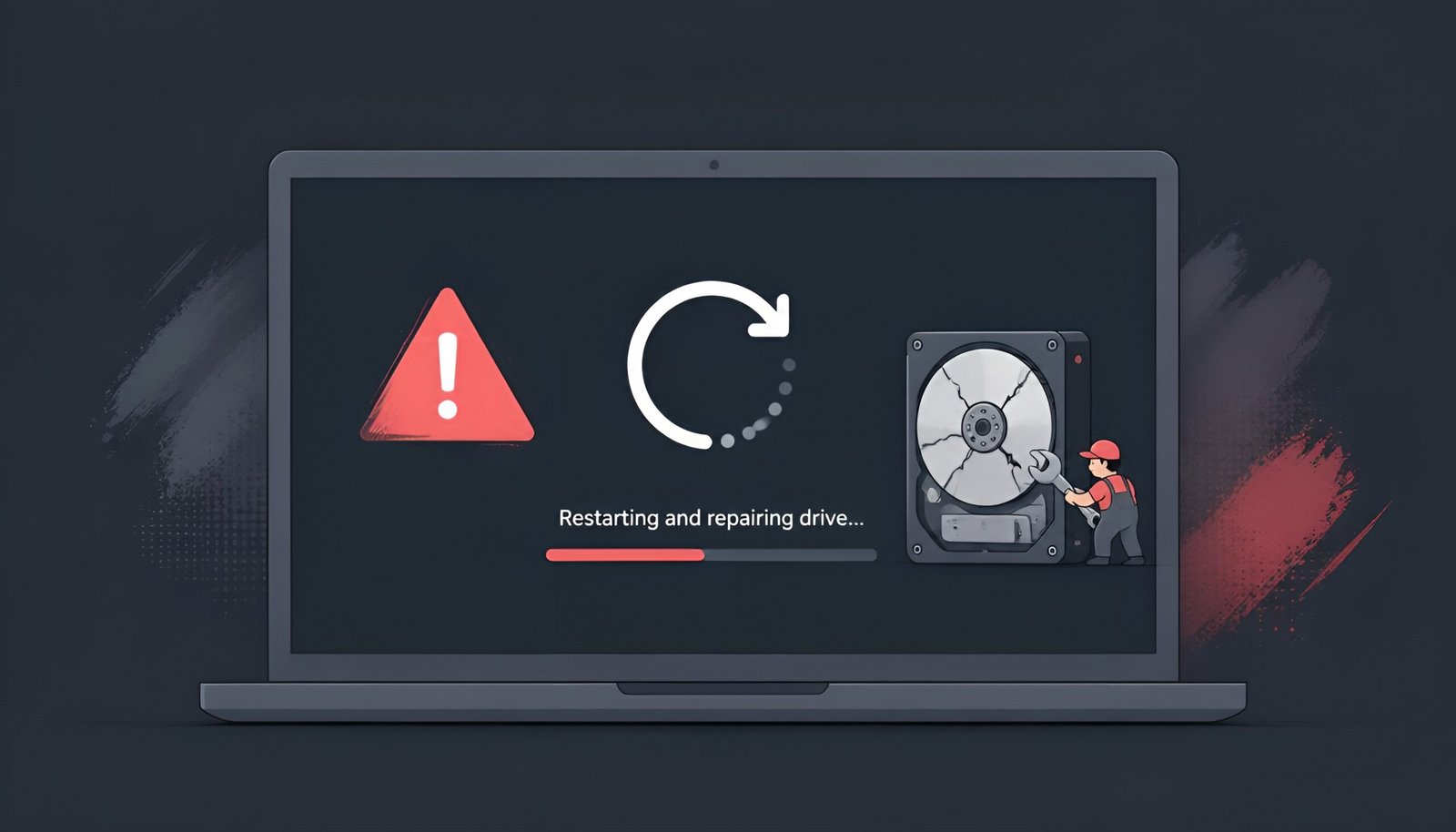
If your PC just showed a black or blue screen with “Your device ran into a problem and needs a restart” followed by the stop code UNMOUNTABLE_BOOT_VOLUME (sometimes shown as 0xED), Windows is telling you it can’t read the drive partition that contains your operating system. It’s not necessarily a dead drive – in most cases it’s a corrupted boot record, a driver conflict, or in early 2026, a specific bad Windows update.
Quick Answer: Fixing UNMOUNTABLE_BOOT_VOLUME
If this started right after installing KB5074109 (the January 2026 security update), it’s a known Microsoft bug that was officially patched by KB5077181 in February 2026 – but if your PC is already stuck in the boot loop, you’ll need to manually recover it through Windows Recovery Environment first, then update normally once you’re back in. If this happened for any other reason (power loss during an update, drive corruption, a recent hardware change), the same WinRE-based recovery steps below usually fix UNMOUNTABLE_BOOT_VOLUME regardless of cause.
Is This the KB5074109 Bug?
Microsoft confirmed that the January 13, 2026 cumulative update (KB5074109) caused UNMOUNTABLE_BOOT_VOLUME boot failures on a subset of PCs – mostly commercial devices that were left in an “improper state” after a December 2025 update failed to install correctly. Installing KB5074109 on top of that broken baseline is what triggered the crash.
Microsoft fixed the underlying issue in KB5077181, released February 10, 2026 (see Microsoft’s official release notes). If your PC updated normally after that date, this specific cause doesn’t apply to you. If you were affected before the fix shipped, your PC needs manual recovery – the update alone won’t un-brick a PC that’s already stuck.
How to Fix It: Recover From Windows Recovery Environment
Since you can’t reach the desktop, everything happens through WinRE (Windows Recovery Environment), which usually launches automatically after a few failed boot attempts.
- If WinRE doesn’t launch automatically, force it by holding the power button to shut down during boot, three times in a row – Windows will detect the repeated failure and boot into recovery
- Select Troubleshoot > Advanced options > Command Prompt
- If this was caused by a recent update, uninstall it first (see the command below)
- Run a Startup Repair from Troubleshoot > Advanced options > Startup Repair and let Windows attempt an automatic fix
If a recent update caused it, uninstall it from Command Prompt
In the WinRE Command Prompt, run:
DISM /Image:C:\ /Get-Packages
This lists installed updates so you can identify the package name for the update you want to remove (look for one matching KB5074109 if that’s your situation), then run:
DISM /Image:C:\ /Remove-Package /PackageName:[package name from above]
Restart once this completes. If the drive letter isn’t C: in the recovery environment, run diskpart then list volume first to identify the correct letter.
If Startup Repair and update removal don’t work: Run
chkdsk C: /f /rfrom the same Command Prompt to check for and repair disk errors, then trybootrec /fixmbr,bootrec /fixboot, andbootrec /rebuildbcdin sequence – these rebuild the boot configuration that Windows uses to find your OS.
Preventing UNMOUNTABLE_BOOT_VOLUME From Happening Again
Once Windows boots normally again, go to Settings > Windows Update and confirm you’re on a build that includes KB5077181 or later before doing anything else. This prevents the same failure from happening again on the next update cycle. If you’re also looking to keep your drive healthier going forward, our guide to freeing up disk space on Windows 11 covers routine maintenance worth doing after a recovery like this.
Frequently Asked Questions
A few more things people ask about the UNMOUNTABLE_BOOT_VOLUME error specifically.
Does UNMOUNTABLE_BOOT_VOLUME mean my hard drive is failing?
Not usually. Most cases are a corrupted boot record or a bad update, both of which are recoverable without replacing hardware. Physical drive failure is possible but far less common – if `chkdsk` reports unreadable sectors that keep reappearing after repair, that’s the point to suspect actual drive failure.
I don’t have KB5074109 installed – why am I getting this error?
UNMOUNTABLE_BOOT_VOLUME isn’t exclusive to that update. It’s a general Windows stop code that appears whenever Windows can’t mount the boot partition, which can happen after a sudden power loss during an update, a failing drive, a BIOS/SATA mode change, or third-party disk software. The WinRE recovery steps above apply regardless of the cause.
Will I lose my files fixing this?
The recovery steps above (update removal, Startup Repair, bootrec commands) don’t touch your personal files – they repair the boot process, not your data partition. That said, back up anything critical to an external drive via the WinRE Command Prompt if possible, before attempting deeper repairs, as a safety measure.
How do I force Windows into recovery mode if it won’t boot at all?
Hold the power button for 10 seconds to force a shutdown while Windows is trying to boot, then power on again. Repeat this two or three times – after several consecutive failed boots, Windows automatically launches into the Windows Recovery Environment (WinRE).
Final Thoughts
If this is the KB5074109-related failure, the good news is Microsoft has already fixed the root cause – you just need to get your specific PC unstuck first, since the fix only prevents new occurrences rather than repairing machines already affected. Work through Startup Repair and update removal before reaching for the more aggressive bootrec commands, and most PCs recover without needing a clean install.
Tested on: Windows 11 24H2 · Windows 11 25H2 – Updated August 2026
Tags: UNMOUNTABLE_BOOT_VOLUME, Windows 11, boot error, KB5074109, stop code 0xED, WinRE