Why Windows 11 Fills Up Faster Than You’d Expect
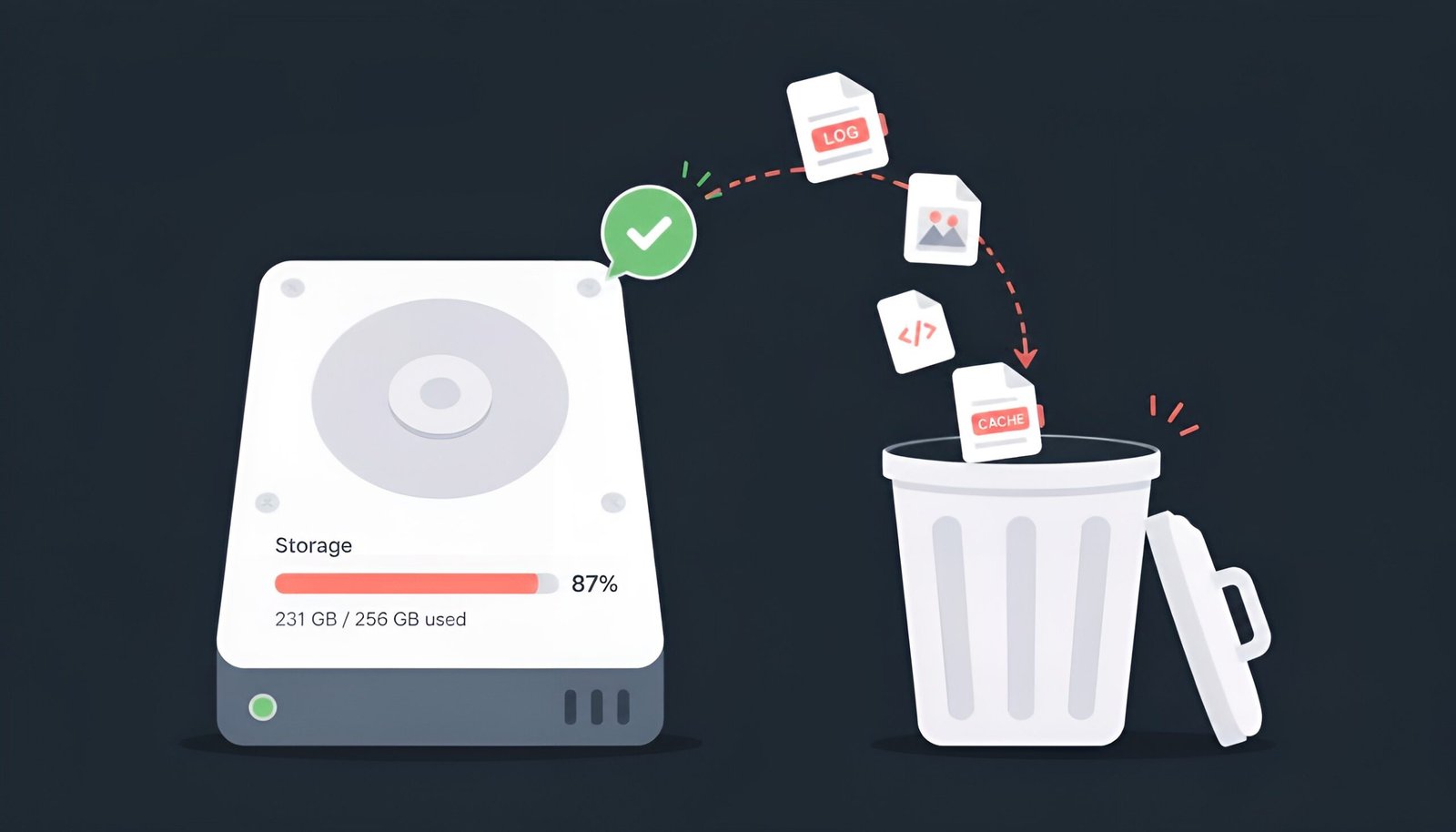
If you’re trying to free up disk space on Windows 11, you’re not imagining it – a fresh install eats up more space than Windows 10 did, and it keeps growing from there. Between Windows Update leftovers, hibernation files, and apps that quietly cache gigabytes of data, a 256GB drive can feel full within a year of normal use.
The good news: almost all of that reclaimable space can be found and cleared without installing anything shady or paying for a “cleaner” app. This guide covers what actually works, in order of effort.
Quick Answer: How to Free Up Disk Space
Start with Storage Sense – built into Windows 11, off by default, and worth turning on permanently. For a one-time deep clean, use Disk Cleanup with system files included. To find out exactly what’s taking up space, WizTree scans an entire drive in seconds and shows you the biggest folders visually. If your storage spiked out of nowhere, check for a known bug rather than blindly deleting files.
1. Turn On Storage Sense (Set It and Forget It)
Storage Sense is Windows 11’s built-in automatic cleanup tool, but it’s off by default – most people never turn it on.
- Press
Win + Ito open Settings - Go to System > Storage
- Toggle Storage Sense on
- Click into it and set Run Storage Sense to “Every week” instead of the default “During low free disk space”
Once enabled, it automatically clears temporary files, empties the Recycle Bin after a set period, and can clean up old Downloads if you choose to allow it. It won’t touch anything in active use.
Worth knowing: By default, Storage Sense leaves your Downloads folder alone. If you want it cleaned automatically too, you have to opt in under Storage Sense’s advanced settings – it won’t happen on its own.
2. Run Disk Cleanup With System Files Included
Disk Cleanup is older than Storage Sense but still catches things Storage Sense doesn’t always reach, especially after a Windows Update – leftover update files can easily total several gigabytes.
- Search “Disk Cleanup” in the Start menu and open it
- Select your main drive (usually C:)
- Click Clean up system files – this is the step most people skip, and it’s where the biggest space savings usually are
- Check Windows Update Cleanup, Temporary files, and Previous Windows installation(s) if present
- Click OK
“Previous Windows installation(s)” alone can free up 10-20GB if you’ve recently done a feature update and never cleared the rollback files.
3. Find Out What’s Actually Taking Up Space
Before deleting anything else, it helps to see where your space is actually going rather than guessing. Windows’ built-in Storage breakdown (Settings > System > Storage) gives a rough category view, but a dedicated scanner shows the real picture down to individual folders.
WizTree is the fastest option – it reads the NTFS Master File Table directly instead of scanning file-by-file, so it can map an entire drive in seconds instead of the many minutes older tools like WinDirStat take. It’s free for personal use.
Run it, let it scan your drive, and look at the treemap view – the biggest rectangles are your biggest space users. It’s common to find an old game install, a forgotten VM disk image, or years of accumulated browser cache sitting untouched.
4. Uninstall What You Don’t Use
Go to Settings > Apps > Installed apps and sort by size instead of name. Games and creative software (video editors, IDEs with bundled SDKs) are usually the biggest offenders, often taking 10-50GB each. If you haven’t opened something in six months, it’s a reasonable candidate to remove – you can always reinstall it later.
5. Move Large Files to Cloud or External Storage
For files you need to keep but don’t need on your local drive constantly – old project archives, video footage, disk images – moving them to an external drive or a cloud service with “Files On-Demand” support (available in OneDrive) keeps them accessible without keeping the actual data local.
Storage Spiked Suddenly? Check for a Known Bug First
If your free space dropped sharply overnight with no obvious cause – no big install, no large download – it’s worth checking for a known Windows bug before assuming you simply ran out of room. A CapabilityAccessManager.db-wal file bug has caused exactly this kind of unexplained storage bloat on Windows 11; if that sounds familiar, our CapabilityAccessManager.db-wal storage fix guide walks through diagnosing and fixing it specifically.
Quick Comparison
| Method | Effort | Typical space freed | Ongoing or one-time? |
|---|---|---|---|
| Storage Sense | Set once | Small, steady | Ongoing |
| Disk Cleanup (system files) | Low | 10-20GB+ | One-time |
| WizTree scan + manual delete | Medium | Varies widely | One-time |
| Uninstall unused apps | Low | 10-50GB+ each | One-time |
Frequently Asked Questions
Is it safe to delete “Previous Windows installation(s)” in Disk Cleanup?
Yes, as long as your current Windows 11 install is working normally. This option only appears for about 10 days after a feature update, and deleting it just removes your ability to roll back to the previous version – it doesn’t affect your current system at all.
Does Storage Sense delete files I still need?
No, by default it only targets temporary files, Recycle Bin contents after a set period, and old cloud-only file placeholders – not your Downloads or personal files, unless you specifically opt into that under its advanced settings.
What’s the difference between WizTree and Windows’ built-in Storage view?
Windows’ Storage view groups usage into broad categories like “Apps” or “Documents,” which doesn’t tell you which specific folder or file is the problem. WizTree shows an actual visual map down to individual files and folders, so you can see exactly what’s large and decide what to remove.
Why did my free space suddenly drop with no explanation?
Sudden, unexplained storage loss is usually either a Windows Update leaving behind temporary files, or in rarer cases a specific bug – like the CapabilityAccessManager.db-wal issue – causing a system file to grow abnormally. Run a WizTree scan first to identify the exact folder before assuming it’s a bug.
How much free space should I keep on my main drive?
Microsoft recommends keeping at least 20GB free at all times for Windows Update and system operations to function smoothly. Below that, updates can fail to install and system performance can degrade.
Final Thoughts
To free up disk space for good, it helps to build a habit rather than doing a one-time clean. Most people only think about disk space once their PC starts warning them it’s nearly full, but the fix is usually a few clicks away rather than a paid “cleaner” subscription. Turn on Storage Sense once, run Disk Cleanup with system files included when you’re low, and use WizTree when you actually want to see where the space is going instead of guessing.
Tested on: Windows 11 24H2 · Windows 11 25H2 – Updated August 2026
Tags: Windows 11, disk space, Storage Sense, Disk Cleanup, WizTree, storage management