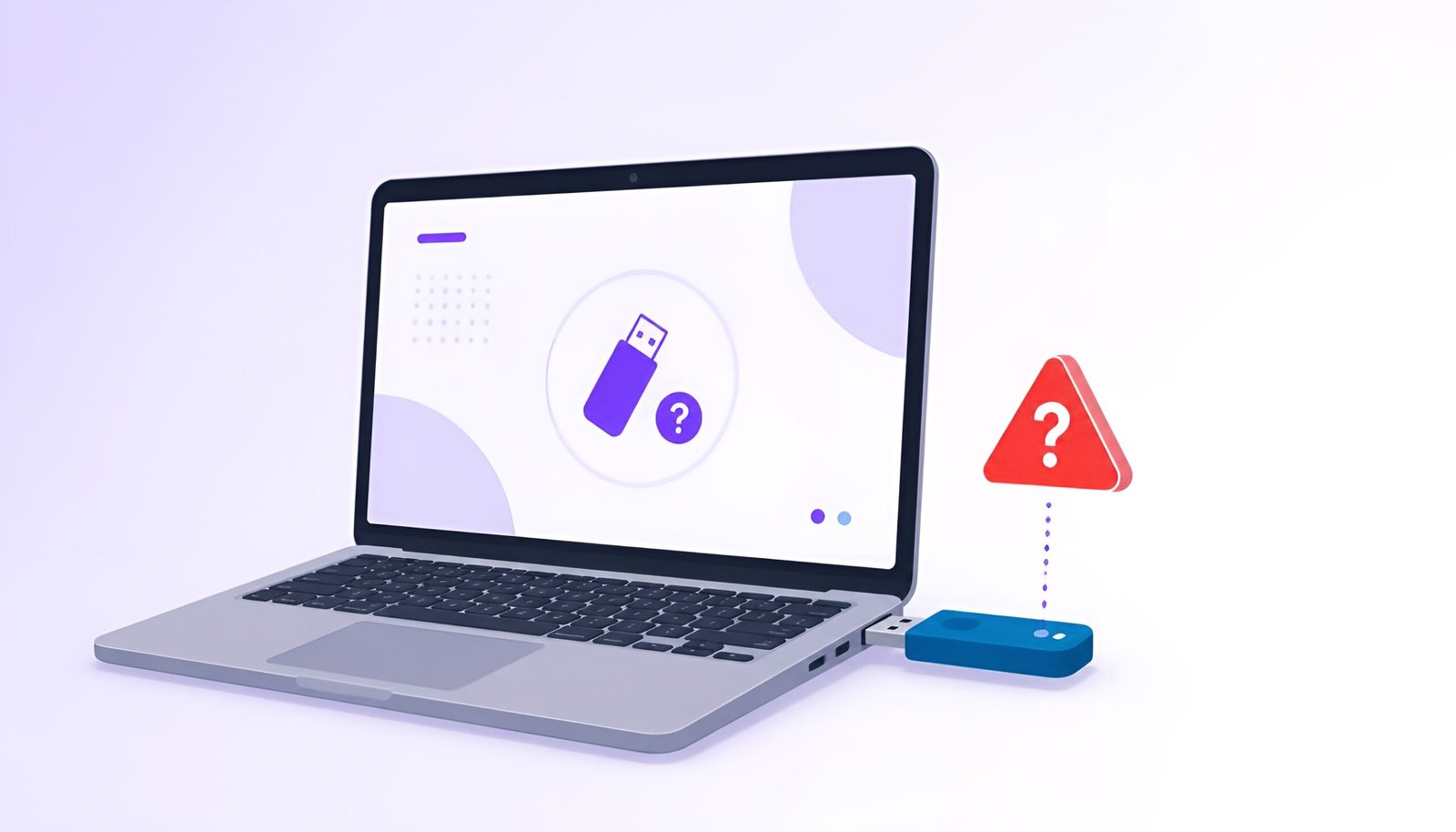
If your USB device not recognized error keeps popping up, here’s where to start. You plug in a USB drive. Windows makes no sound. Nothing shows up in File Explorer.
Or you get a “USB device not recognized” popup with an error code that tells you nothing useful.
I had this happen with an external drive full of files I actually needed. No warning, just gone. The drive was fine on another computer. The port looked fine. But Windows couldn’t see it.
Here are 8 fixes, starting with the quickest ones. Most people find their answer in the first three.
Find your situation first – saves time.
No sound when plugged in – port or hardware issue. Start with Fix 1.
Sound plays but nothing appears – driver or drive letter issue. Start with Fix 3.
Shows in Disk Management but not File Explorer – missing drive letter. Go to Fix 5.
Started after a Windows update – driver issue. Start with Fix 3.
Fix 1: Try a Different Port and Remove Other USB Devices
Do this first. It takes 30 seconds and solves more cases than you’d expect.
- Try a different USB port. On a desktop, rear ports connect directly to the motherboard and are more reliable than front panel ports. Try those first.
- Unplug other USB devices. Too many connected at once can cause conflicts. Leave only the one you’re trying to use.
- Test on another computer. If it’s not recognized there either, the device itself is probably damaged.
- Skip the hub. If you’re using a USB hub, connect directly to the computer instead. Hubs cause power issues with drives that need more power.
Works on another computer? The problem is your PC’s settings. Keep going.
Doesn’t work anywhere? The USB device is physically damaged.
Fix 2: Restart Your PC
Obvious, but it actually works. Windows sometimes gets stuck in a state where USB devices don’t initialize correctly.
- Safely eject the USB device first (right-click the USB icon in the taskbar)
- Restart – not sleep, a full restart
- Plug the USB into a different port after restart
- Wait about 15 seconds
If Windows Update ran recently and you haven’t restarted since, this is especially worth trying.
Fix 3: Update or Reinstall the USB Driver
This is the most common fix. Outdated or broken drivers are behind most USB recognition failures – and Windows updates sometimes make this worse by swapping in a driver that doesn’t work with your hardware.
Update the driver:
- Press Windows + X and open Device Manager
- Expand Universal Serial Bus controllers
- Right-click any device with a yellow warning icon and choose Update driver
- Select Search automatically
- Do the same for each USB Root Hub in the list
Reinstall the driver (if updating didn’t help):
- In Device Manager, expand Disk drives
- Right-click your USB device and choose Uninstall device
- Unplug the USB
- Wait a minute, then plug it back in
- Windows reinstalls the driver automatically
Seeing “Unknown Device” in Device Manager? That’s your USB with a failed driver. Right-click it and choose Update driver.
Fix 4: Turn Off USB Power Saving (Especially on Laptops)
This one gets missed a lot. Windows has a power-saving setting that cuts power to USB ports when it thinks they’re not needed. On laptops especially, this can make connected devices suddenly disappear.
Turn off USB Selective Suspend:
- Search for “Edit power plan” in the Start menu and open it
- Click Change advanced power settings
- Find USB settings and expand it
- Set USB selective suspend setting to Disabled
- Click Apply, then OK
Turn off power saving on USB Root Hubs:
- Open Device Manager and expand Universal Serial Bus controllers
- Right-click a USB Root Hub and choose Properties
- Go to the Power Management tab
- Uncheck “Allow the computer to turn off this device to save power”
- Repeat for every USB Root Hub in the list
- Restart and test
Fix 5: Assign a Drive Letter
If your USB drive shows up in Disk Management but not in File Explorer, this is almost certainly the problem. It just needs a drive letter assigned.
- Press Windows + X and open Disk Management
- Find your USB drive in the list – it might say “No Drive Letter” or show as “Healthy (Active)”
- Right-click the USB drive and choose Change Drive Letter and Paths
- Click Add
- Pick any letter from D: to Z: that isn’t already taken
- Click OK – the drive appears in File Explorer immediately
If the drive shows as “Unallocated”: It has no partition – either it was never formatted, or the partition got deleted. You’ll need to format it to use it again, which erases all data. If recovering files matters, use data recovery software first.
Fix 6: Run the Hardware Troubleshooter
Windows has a built-in tool for this. It won’t fix everything, but it often identifies the exact cause.
Works on Windows 10 and 11:
- Press Windows + R
- Type
msdt.exe -id DeviceDiagnosticand press Enter - Click Next and follow the prompts
Microsoft Official USB Fix Guide
Fix 7: Run SFC to Repair System Files
Corrupted Windows system files can cause USB problems. This scan finds and fixes them.
- Press Windows + X and open Terminal (Admin) or Command Prompt (Admin)
- Type this and press Enter:
sfc /scannow
- Wait for it to finish – takes 10 to 15 minutes
- If it says “found corrupt files and repaired them”, restart and test your USB again
Fix 8: Check Windows Updates
Two scenarios where this matters:
The problem started after a recent update – that update might have broken your USB driver. You can roll it back.
The problem has been going on a while – Microsoft may have already released a fix you haven’t installed.
Check for updates:
- Settings then Windows Update then Check for updates
- Install everything, including Optional updates (driver fixes often show up there)
- Restart and test
Roll back a recent update:
- Settings then Windows Update then Update history then Uninstall updates
- Remove the most recent update and restart
USB Device Not Recognized – Quick Reference
| Situation | Try this first |
|---|---|
| No sound when USB plugged in | Fix 1 – Try different port |
| Sound plays but nothing appears | Fix 3 – Update/reinstall driver |
| Shows in Disk Management, not File Explorer | Fix 5 – Assign drive letter |
| Laptop only, works on desktop | Fix 4 – Disable power saving |
| Started after Windows update | Fix 8 – Roll back update |
| “Unknown Device” in Device Manager | Fix 3 – Reinstall driver |
| Error code 43 | Fix 3, then Fix 7 |
| Nothing worked | Fix 7 – SFC scan |
Frequently Asked Questions
Why does Windows say “USB device not recognized”?
Usually a driver problem, a power setting cutting the port, or a missing drive letter. It’s almost always fixable in software – you don’t need new hardware.
My USB works on other computers but not mine. Why?
The problem is on your PC, not the device. Start with Fix 3 (driver) and Fix 4 (power saving). Those two cover most single-PC cases.
What is USB error code 43?
Windows stopped the device because it reported a problem – usually a driver issue. Uninstall and reinstall the driver (Fix 3). If that doesn’t fix it, run SFC (Fix 7).
My USB shows as “Unallocated” in Disk Management. What now?
No partition exists on the drive. You’ll need to format it to use it, which erases everything. If you need the files, try data recovery software first before formatting.
Can malware cause this?
Rarely, but yes. If nothing else works, run a scan with Windows Defender or Malwarebytes and try again.
Final Thoughts
USB device not recognized errors look alarming but are rarely a sign of permanent hardware failure – in most cases, Windows just needs a nudge to see the device again.
Most cases of USB device not recognized come down to three things: wrong port, broken driver, or power settings cutting the connection.
Try a different port first. Then update the driver. If the drive shows in Disk Management but not File Explorer, just assign it a drive letter – that’s usually all it needs.
The only situation these fixes can’t solve is physical damage to the USB device. Testing on another computer tells you that in 30 seconds, so do that early and save yourself the troubleshooting time. If the issue turned out to be network-related instead, our guide on WiFi connected but no internet covers a similar troubleshooting approach for connectivity problems.
Tested on: Windows 11 25H2 · Windows 10 22H2 · Updated August 2026