Why Use 7-Zip Instead of Windows’ Built-In Zip Tool
If you’re going to download 7-Zip, it helps to know why first: Windows 11 can already compress files into zip folders without installing anything. So why do millions of people install 7-Zip on top of that?
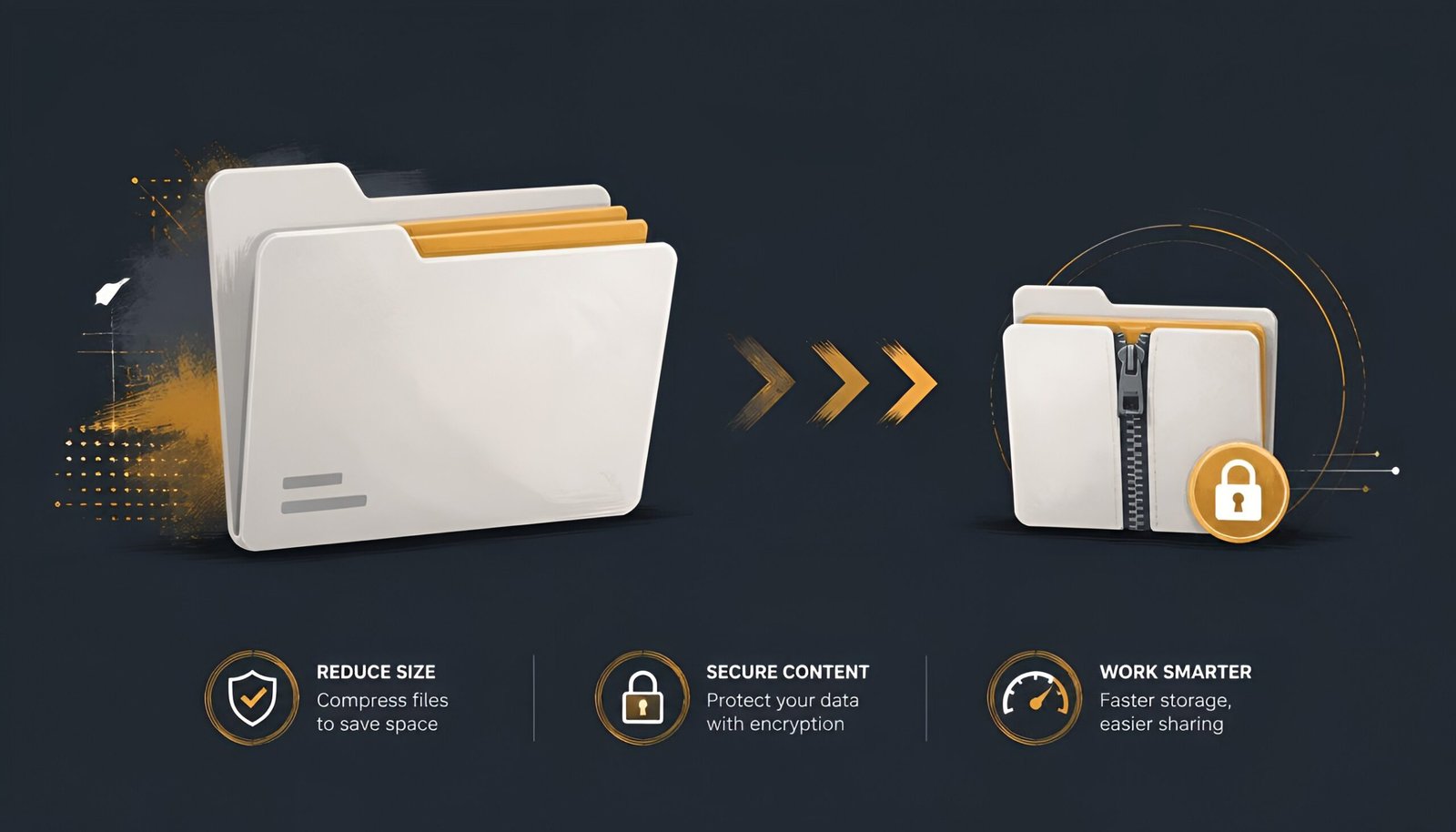
Two reasons. 7-Zip’s native .7z format compresses files smaller than standard zip – often noticeably smaller for documents and code. And 7-Zip opens almost every archive format that exists, including RAR files, which Windows can’t open at all without a separate program.
It’s also been completely free and ad-free for over 25 years. No catch, no premium tier, no nagging upgrade prompts.
Download 7-Zip – Official Link
Download 7-Zip for Windows – Free (Official)
The current version is 26.01, released April 2026. The download is a tiny installer – about 1.5MB – and installs in under 30 seconds. 7-Zip works on Windows 11, 10, 8, and 7, both 32-bit and 64-bit.
Only download from 7-zip.org. Many third-party download sites bundle 7-Zip with unwanted toolbars or outdated versions. The official site never includes bundled software.
Installation Steps
- Run the downloaded installer
- Choose your install location (default is fine for most users)
- Click Install
- That’s it – 7-Zip automatically adds itself to your right-click menu in File Explorer
How to Compress Files With 7-Zip
- Right-click any file or folder in File Explorer
- Hover over 7-Zip in the context menu
- Choose Add to archive…
- Select your format – 7z for maximum compression, or zip if you need compatibility with people who don’t have 7-Zip
- Click OK
For quick compression without options, right-click and choose Add to [filename].7z – this skips the dialog and compresses immediately with default settings.
How to Extract Files With 7-Zip
- Right-click the archive file (.7z, .zip, .rar, etc.)
- Hover over 7-Zip
- Choose Extract Here (extracts to the current folder) or Extract to “[foldername]\” (creates a new folder)
7-Zip extracts dozens of formats beyond its own: RAR, TAR, ISO, CAB, DEB, RPM, and many more. If you’ve ever gotten a “no app found to open this file” error with a RAR file, 7-Zip fixes that permanently.
How to Password Protect a Zip File
This is a feature Windows’ built-in compression doesn’t have at all – and it’s one of the most common reasons people install 7-Zip.
- Right-click the file(s) you want to protect
- 7-Zip – Add to archive…
- Under Encryption, enter a password
- Select AES-256 as the encryption method (strongest option, default)
- Click OK
Anyone trying to open the archive needs the password. AES-256 encryption is the same standard used by banks and government agencies – it’s not breakable with normal computing power.
⚠️ Important: 7-Zip has no password recovery feature. If you forget the password, the files inside are permanently inaccessible – by design, since that’s what makes the encryption secure. Store passwords somewhere safe.
7-Zip vs Windows Built-In Zip vs WinRAR
| Feature | 7-Zip | Windows Built-In | WinRAR |
|---|---|---|---|
| Price | Free | Free (built-in) | Free trial, then paid |
| Compression ratio | Best (7z format) | Standard (zip only) | Good |
| Opens RAR files | Yes | No | Yes (its own format) |
| Password protection | Yes – AES-256 | No | Yes |
| Ads or nag screens | None | None | Nag screen after trial |
| Open source | Yes | No | No |
Frequently Asked Questions
Is 7-Zip actually safer than the Windows built-in zip tool?
Both are safe to use. 7-Zip’s advantage is password protection with AES-256 encryption, which Windows’ built-in tool doesn’t offer at all. If you need to send sensitive files securely, 7-Zip is the better choice. For everyday compression without security needs, both work fine.
What’s the difference between .7z and .zip formats?
.7z is 7-Zip’s native format and typically compresses files 10-30% smaller than .zip, especially for documents, code, and uncompressed data. .zip is more universally compatible – anyone can open a .zip file, including people without 7-Zip installed. Use .7z when you control both ends of the file transfer; use .zip when sending to people who might not have 7-Zip.
Can 7-Zip open RAR files?
Yes. 7-Zip can extract RAR archives without needing WinRAR or any other software. This is one of the most common reasons people install it – Windows has no built-in way to open RAR files, and 7-Zip solves that for free.
Why doesn’t 7-Zip show up in my right-click menu?
During installation, make sure the Shell Integration option is checked (it’s checked by default). If it’s missing after installing, open 7-Zip File Manager, go to Tools – Options – System, and check the boxes for the context menu items you want, then click Apply.
Is 7-Zip safe? I heard about a security vulnerability.
A vulnerability (CVE-2026-48095) affecting the NTFS archive handler was identified and patched in version 26.01, released April 2026. As with any software, keeping 7-Zip updated to the latest version ensures you have the current security fixes. The official download link always provides the latest patched version.
Final Thoughts
7-Zip is one of those small utilities that quietly earns a permanent place on your computer. The compression is genuinely better than Windows’ built-in tool, it opens formats Windows can’t touch, and the password protection feature alone justifies installing it if you ever need to send sensitive files.
It’s a 1.5MB download that takes 30 seconds to install and you’ll likely use it regularly without thinking about it. If you’re compressing files as part of a backup routine, our guide to the best free file recovery software for Windows is worth having on hand too, in case something goes wrong on the other end.
Download 7-Zip Free – Official Site
Tested on: Windows 11 24H2 · Windows 10 22H2 · 7-Zip 26.01 – Updated August 2026
Tags: 7-Zip, file compression, zip files, AES-256, RAR, WinRAR, Windows 11