A colleague sends you a Google Meet link, and you’re already using Google Meet free whether you realize it or not. You click it, and suddenly you’re wondering: Do I need to download something? Do I need an account? Is this actually free?
I had the same questions the first time I used Google Meet. The answers are simpler than you’d expect: no download needed, no account required to join, and yes, it’s genuinely free for most uses.
This guide covers everything you need to know about using Google Meet without paying a cent, including what the free plan actually includes, what it doesn’t, and how it stacks up against Zoom.
What’s in this guide:
- What Google Meet’s free plan actually includes in 2026
- How to join a Google Meet without an account
- How to start your own free Google Meet
- Google Meet vs Zoom – which is better for free users?
- Common problems and how to fix them
Setting up your video call apps? Our guide on installing Zoom covers the other major option.
What Does Google Meet’s Free Plan Include in 2026?
Here’s what you get for free with a standard Google account:
- Group meetings up to 60 minutes with up to 100 participants
- Unlimited 1-on-1 calls, no time limit at all
- Screen sharing, share your full screen or a specific window
- Real-time captions, automatically generated subtitles during calls
- Virtual backgrounds, blur your background or use a custom image
- Works in your browser, no app download required
- Works on mobile, free iOS and Android app available
That’s a solid package for personal use, remote work, online classes, or casual catch-ups. The main limitations on the free plan are no meeting recording and the 60-minute cap on group calls.
Good news on the 60-minute limit: When time runs out, the meeting link doesn’t expire. Everyone can click the same link and rejoin immediately for another full hour. It takes about 30 seconds.
How to Join a Google Meet Without an Account
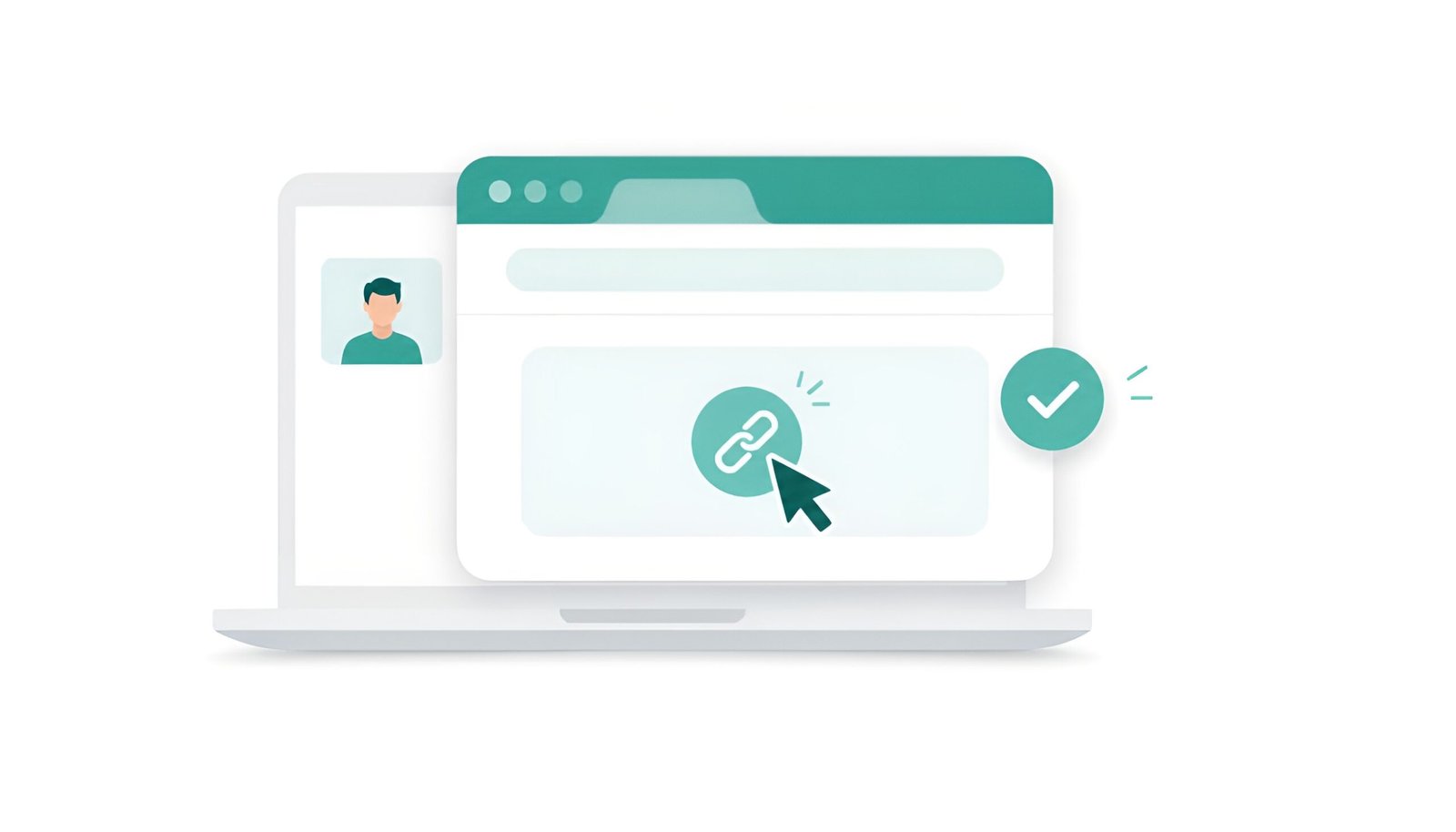
This is the part most people don’t realize: you don’t need a Google account to join someone else’s meeting. Anyone can join as a guest.
- Click the meeting link from your email or calendar invite
- Your browser opens Google Meet automatically, no download prompt
- Allow camera and microphone access when asked
- Enter your name as you want it to appear
- Click “Ask to join”
- Wait for the host to let you in
That’s the entire process. Works best in Chrome or Edge, Safari works too but with some limitations on older versions.
✅ Tip: If you have a Google account and you’re already signed in, joining is even faster, Google Meet recognizes you automatically and fills in your name.
How to Start Your Own Google Meet Free
To host a meeting, you need a free Google account. If you have Gmail, you already have one.
Method 1: Start from meet.google.com
- Go to meet.google.com and sign in with your Google account
- Click “New meeting”
- Choose “Start an instant meeting” for a meeting right now
- Copy the meeting link and share it with participants
- Participants can join directly from the link, no account needed on their end
Method 2: Start from Google Calendar
- Open Google Calendar
- Click on a time slot to create an event
- Click “Add Google Meet video conferencing”
- A Meet link is automatically generated and added to the invite
- Add guests and send the invite, they get the link via email
Method 3: Start from Gmail
- Open Gmail in your browser
- In the left sidebar, look for “Meet”
- Click “New meeting”
- Copy and share the link
How to Download Google Meet (Optional)
You don’t need the app for desktop, the browser version works perfectly. But if you prefer an app on your phone:
Google Meet Free vs Zoom Free – Which Is Better?
Both tools have a free plan. Here’s how they actually compare:
| Feature | Google Meet Free | Zoom Free |
|---|---|---|
| Group meeting time limit | 60 minutes | 40 minutes |
| Max participants (free) | 100 | 100 |
| 1-on-1 calls | ✅ Unlimited | ✅ Unlimited |
| Download required | ❌ No (browser works) | ⚠️ App recommended |
| Account needed to join | ❌ No | ❌ No |
| Screen sharing | ✅ Yes | ✅ Yes |
| Recording (free) | ❌ No | ❌ No |
| Virtual backgrounds | ✅ Yes | ✅ Yes |
| Gmail / Calendar integration | ✅ Built-in | ❌ No |
Bottom line: For free users, Google Meet has a longer time limit (60 vs 40 minutes) and doesn’t require a download. If you already use Gmail or Google Calendar, Meet is the more convenient choice. Zoom has a slight edge on features and reliability for heavy users.
Common Problems and Fixes
❌ Camera or microphone not working
- When you first join, your browser asks for camera/microphone permission, click Allow
- If you accidentally clicked Block: in Chrome, click the lock icon in the address bar → Site settings → reset camera and microphone to Allow
- Close other apps that might be using your camera (Zoom, Teams, etc.)
❌ “You need permission to join this call”
- The host hasn’t approved your request yet, wait a moment
- If you’ve been waiting too long, ask the host to check their screen for a join request notification
- Make sure you’re using the correct meeting link
❌ Meeting ended at 60 minutes
- The free plan caps group calls at 60 minutes, this is normal
- The same meeting link still works, everyone can click it again and rejoin within 30 seconds
❌ Poor video or audio quality
- Check your internet connection, Google Meet works best on at least 3 Mbps
- Turn off your camera to save bandwidth if audio is cutting out
- Close other browser tabs or apps using bandwidth
- Switch from Wi-Fi to a wired connection if possible
❌ Google Meet not working in Safari
- Google Meet works in Safari but Chrome gives the most reliable experience
- If Safari isn’t working, switch to Chrome or Firefox
- Make sure your Safari version is up to date
Frequently Asked Questions
Is Google Meet completely free?
Yes, Google Meet is free for personal use. The free plan includes group calls up to 60 minutes with up to 100 participants, screen sharing, captions, and virtual backgrounds. No credit card required.
Do I need to download Google Meet?
No. On desktop, Google Meet works directly in your browser, no download needed. Chrome gives the best experience. On mobile, the free app is available for Android and iPhone.
Can I use Google Meet without a Gmail account?
You can join a meeting without any Google account as a guest. To host your own meeting, you need a free Google account, which you can create at accounts.google.com.
How do I extend a Google Meet beyond 60 minutes for free?
When the 60-minute limit hits, the meeting ends for everyone. The host can immediately restart using the same meeting link, everyone rejoins and gets another full hour. There’s no limit on how many times you can do this.
Is Google Meet safe and private?
Yes. Google Meet uses encryption for all calls. Meetings are private, only people with the link can join, and the host must approve guest requests before they enter.
Final Thoughts
Google Meet is one of the most convenient free video calling tools available in 2026, mostly because it requires nothing to get started. No download, no account to join, no setup. Just click a link and you’re in.
If you already live in the Google ecosystem, Gmail, Calendar, Google Drive, Meet fits in without any extra effort. And for most personal and small-team use, the free plan is more than enough.