Typing on Your Phone Keyboard for Every WhatsApp Message Gets Old Fast
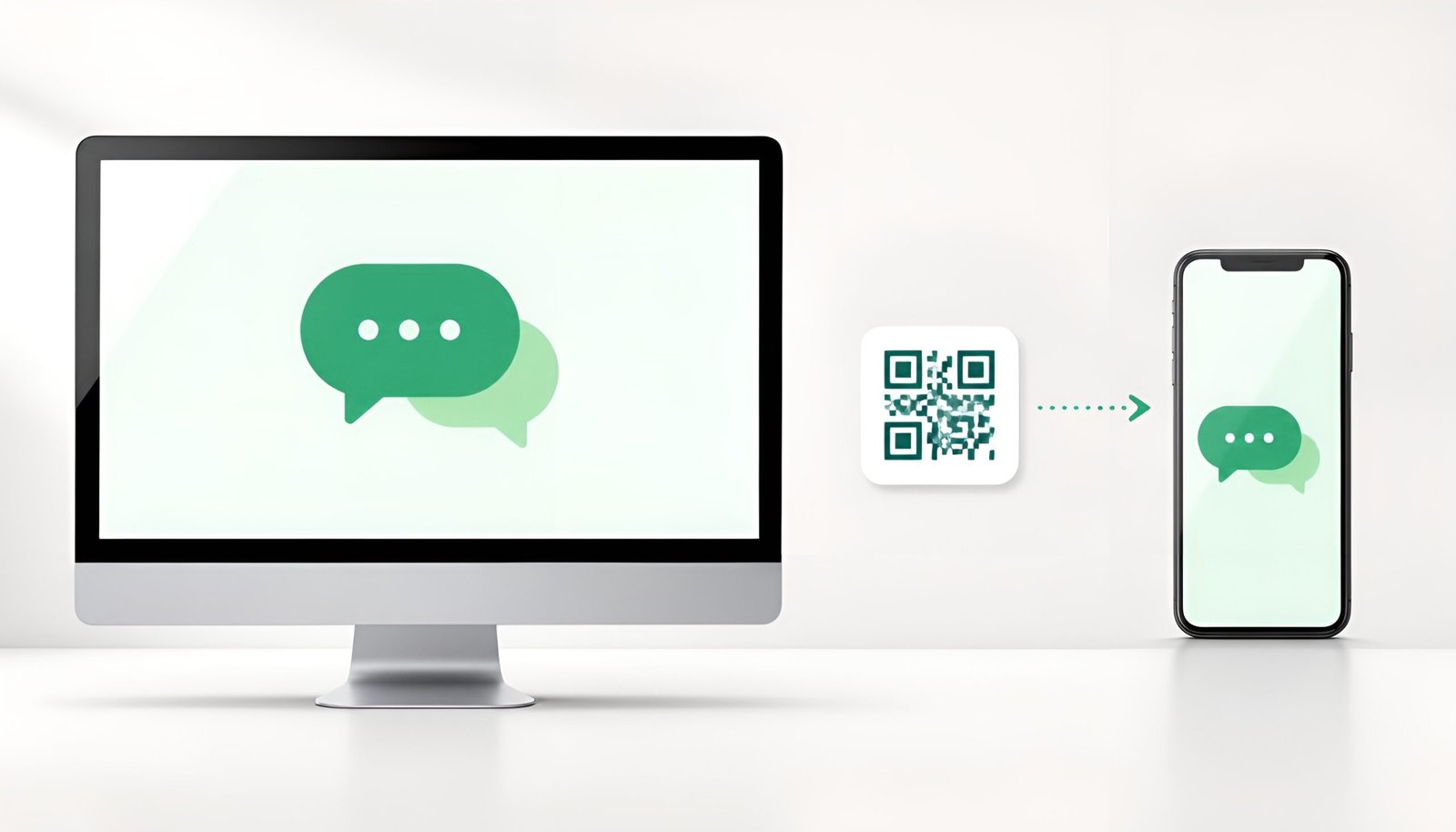
If you want to install WhatsApp Desktop, know that it takes about two minutes to set up on either Windows or Mac – no separate account, no phone number re-entry, just a one-time QR code scan that links the two.
Install WhatsApp Desktop on Windows
Windows 11 and most recent Windows 10 versions (64-bit, version 1903 or later) support the desktop app. Go to whatsapp.com/download, click the Windows download option, and it’ll take you to the Microsoft Store listing. Confirm it’s the official WhatsApp app published by WhatsApp Inc. before installing – a quick glance at the publisher name avoids installing a lookalike. Click Get or Install, sign in with a Microsoft account if the Store prompts you to, and wait for it to finish before opening it.
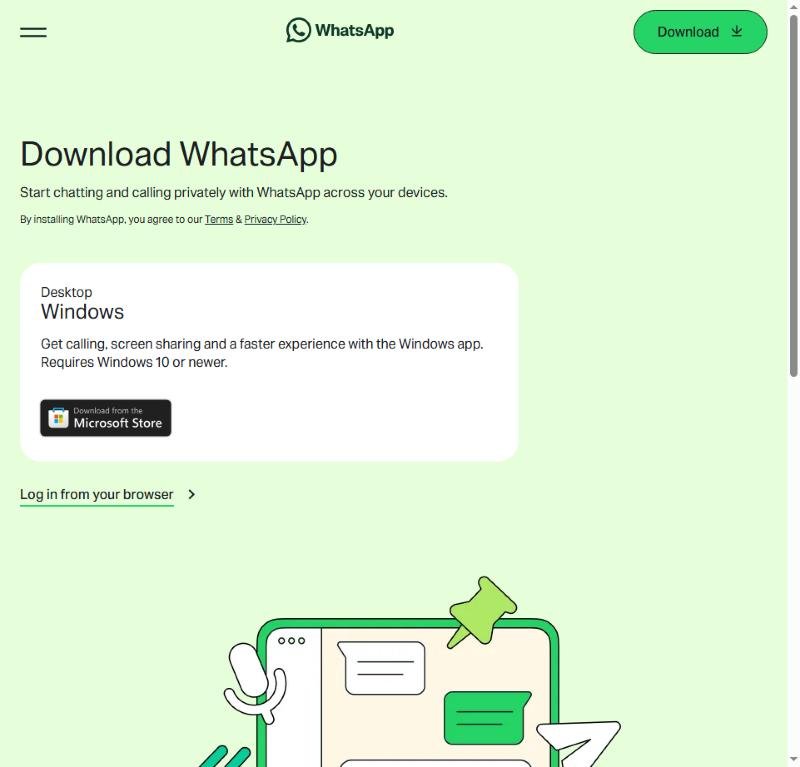
WhatsApp’s official desktop download page
Installing WhatsApp Desktop on Mac
WhatsApp Desktop requires macOS 11 or later. From your browser, go to the same whatsapp.com/download page and choose the Mac option, or search for WhatsApp directly in the Mac App Store if you prefer installing through Apple’s store instead. Once downloaded, open the file and follow the installation prompts – it’s a standard drag-to-Applications-folder installer if you download it directly rather than through the App Store.
Linking Your Phone to the Desktop App
Open WhatsApp Desktop after installing, and you’ll see a QR code in the center of the window. On your phone, open WhatsApp, tap the three-dot menu (or Settings on iPhone), select Linked Devices, then Link a Device. Point your phone’s camera at the QR code on your screen, and the two will sync automatically – your chat history, contacts, and media all appear on desktop within a few seconds. Once you install WhatsApp Desktop and complete this one scan, it stays linked – you won’t need to repeat the QR code step unless you manually log out or switch computers.
What You Should Know Before Relying on It Daily
WhatsApp Desktop doesn’t require your phone to stay connected to the same Wi-Fi network the way some older messaging desktop clients did, but your phone does need to have a working internet connection somewhere for messages to sync in real time. If your phone is completely off or has no signal at all for an extended period, desktop messages can lag until it reconnects.
You can link WhatsApp to up to four devices at once (desktop, web browser, tablet, etc.), so installing the desktop app doesn’t cost you access to WhatsApp Web if you also use that on a different computer.
If you’re setting up multiple messaging apps across your devices, it’s worth checking the same kind of desktop linking process for Telegram’s desktop setup, since the multi-device linking concept works similarly across most messaging platforms now.
Tested on: Windows 11, Windows 10 (64-bit 1903+), macOS 11+ – Updated August 2026
Tags: install whatsapp desktop windows and mac, link whatsapp desktop app qr code phone, whatsapp desktop vs whatsapp web difference