It always happens at the worst moment – and it’s exactly why you need Google Photos backup. You’re about to take a photo, a birthday, a trip, something you won’t get back, and your phone says: “Storage full. Cannot take photo.”
You scramble to delete something. Maybe an app, maybe some old screenshots. But the photos? You can’t delete those. Those are memories.
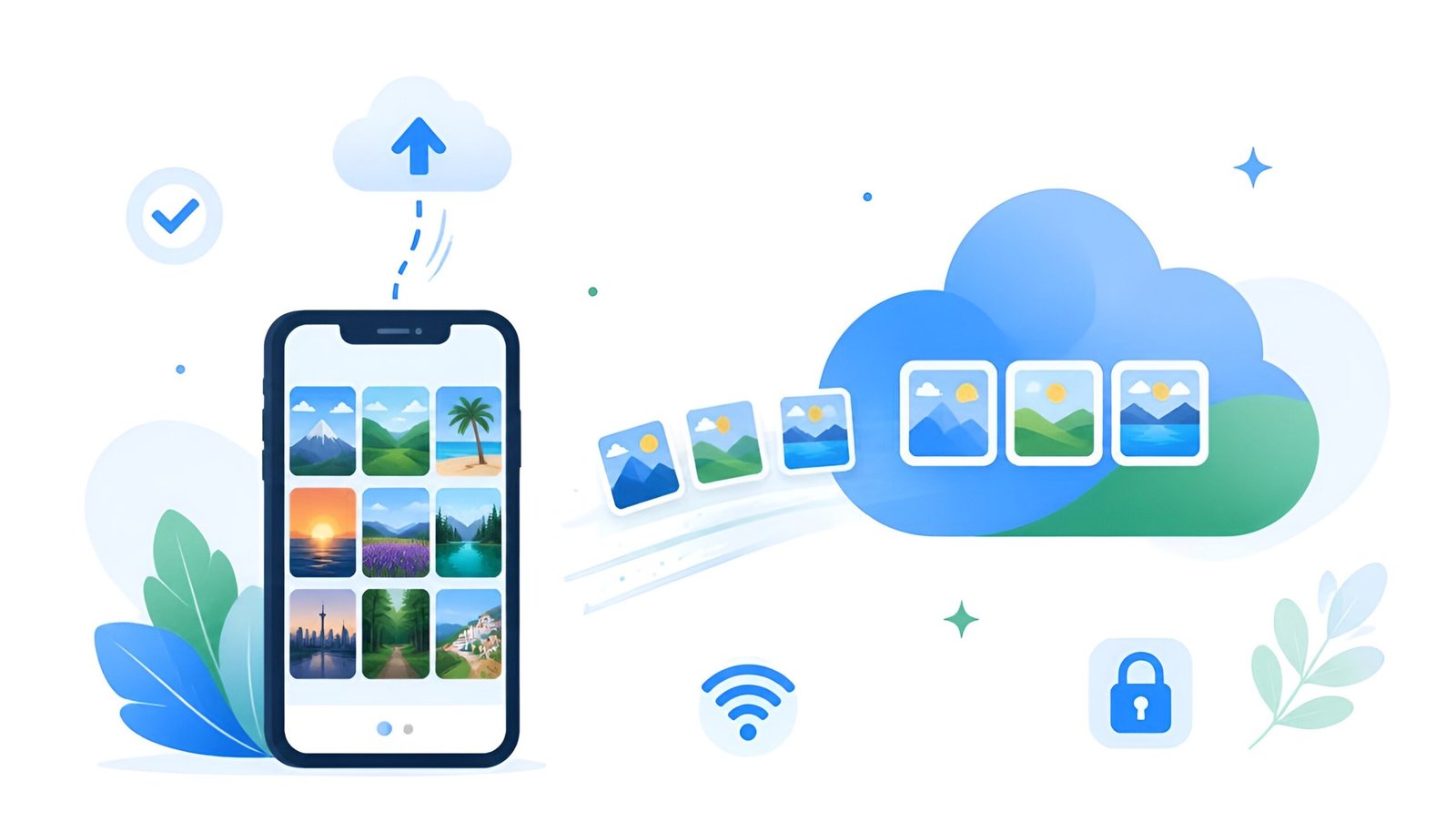
Here’s the fix I wish someone had told me earlier: Google Photos backup. Set it up once, and every photo you take automatically saves to the cloud in the background. Your phone storage stays free. Your memories stay safe. And it’s free.
This guide walks you through the entire Google Photos backup setup – for Android and iPhone – in plain language, no tech knowledge required.
What you’ll find in this guide:
- How to set up Google Photos backup on Android (step-by-step)
- How to set up Google Photos backup on iPhone
- Storage saver vs. original quality – which should you choose?
- How to free up phone storage after backup
- Common problems and how to fix them
Backing up photos is one piece of the puzzle – if you’re also running out of space for documents and files, our guide on installing Google Drive on PC covers the rest.
What Is Google Photos Backup, and Is It Really Free?
Google Photos backup automatically copies every photo and video from your phone to your Google account in the cloud. Once backed up, you can access your photos from any device – phone, tablet, or computer – just by signing in.
The free tier gives you 15GB of storage, shared across Google Photos, Gmail, and Google Drive. For most people with a few thousand photos, this goes a long way, especially if you use the “Storage saver” quality setting (more on that below).
If you need more, Google One plans start at around $3/month for 100GB. But start with the free tier first, you might not need to upgrade at all.
Important 2026 update: T-Mobile’s exclusive Google One plan with unlimited Google Photos storage stopped accepting new sign-ups in September 2025, and fully ended for all remaining subscribers on March 31, 2026. There is no longer any way to get unlimited Google Photos storage. The free 15GB and paid Google One plans are now the only options.
How to Set Up Google Photos Backup on Android
Step 1: Download Google Photos
Most Android phones come with Google Photos pre-installed. If yours doesn’t, grab it from the Play Store:
Download Google Photos for Android
Step 2: Turn On Backup
- Open the Google Photos app
- Tap your profile picture in the top right corner
- Tap Photos settings
- Tap Backup
- Toggle Backup to ON
That’s it. Backup starts immediately over Wi-Fi.
Step 3: Choose Your Backup Quality
On the same Backup settings screen, you’ll see a Backup quality option. You have two choices:
| Setting | What it does | Best for |
|---|---|---|
| Storage saver | Slightly compresses photos. Looks identical on screen and in most prints. | Most people, saves storage space |
| Original quality | Uploads the exact file your camera captured, no compression. | Photographers, large prints, RAW files |
For most people, Storage saver is the right choice. The quality difference is invisible in everyday use, and it means your free 15GB goes much further.
Step 4: Choose Which Folders to Back Up
By default, Google Photos backs up your camera roll. If you want to also back up screenshots, WhatsApp images, or downloads:
- Go back to Backup settings
- Tap Back up device folders
- Toggle on any folders you want included
How to Set Up Google Photos Backup on iPhone
Step 1: Download Google Photos for iOS
Download Google Photos for iPhone
Step 2: Sign In and Enable Backup
- Open Google Photos and sign in with your Google account
- When prompted, tap Turn on backup
- Allow Google Photos access to your photos when asked
- Choose your backup quality (Storage saver recommended)
On iPhone, Google Photos automatically backs up everything in your camera roll, no folder selection needed.
iPhone tip: Go to your iPhone Settings → Google Photos → allow “Background App Refresh.” This lets Google Photos back up photos even when the app isn’t open.
How to Check If Your Google Photos Backup Is Working
Open Google Photos and tap your profile picture. You’ll see one of these status messages:
- “Backup is on” with a progress count – backup is running normally
- “Backup complete” – all photos are safely backed up
- “Backup is off” – go back to settings and turn it on
- “Waiting for Wi-Fi” – backup is paused until you connect to Wi-Fi
If you have a large existing photo library, the first backup can take hours or even days. That’s normal, leave your phone plugged in and on Wi-Fi overnight and let it run.
How to Free Up Phone Storage After Backup
This is the part most people miss. Backing up doesn’t automatically delete local copies from your phone. You need to do that separately, and only after confirming backup is complete.
- Make sure backup status says “Backup complete”
- Open Google Photos → tap your profile picture
- Tap Manage storage
- Tap Free up space
- Google Photos shows you how many photos can be safely deleted from your phone (because they’re already backed up)
- Tap Free up [X] GB to confirm
I did this after my first backup and recovered over 4GB on my phone, without losing a single photo. They’re all still in Google Photos, accessible any time.
Google Photos Backup Problems and How to Fix Them
❌ Backup is stuck or not progressing
- Make sure you’re connected to Wi-Fi
- Check that your Google account has available storage at one.google.com/storage
- Force-close the app and reopen it
- Restart your phone
❌ “Not enough storage to back up”
- Your 15GB free tier is full, you need to either free up space or upgrade to a Google One plan
- First try: delete old emails with large attachments in Gmail (they share the same 15GB)
- Also check Google Drive for large files you no longer need
❌ Backup only works when the app is open
- On iPhone: enable Background App Refresh in Settings → Google Photos
- On Android: make sure battery optimization isn’t restricting Google Photos (Settings → Battery → App optimization → Google Photos → Don’t optimize)
❌ Some photos show as “not backed up”
- Open the photo and tap Back up now
- Check the file format, Google Photos supports most common formats including JPG, PNG, HEIC, MP4, and MOV
- Photos larger than 200MP or videos larger than 10GB cannot be backed up
Frequently Asked Questions About Google Photos Backup
Does Google Photos backup use mobile data?
By default, Google Photos only backs up over Wi-Fi to save your mobile data. You can change this in Backup settings if you want backup to run on cellular too, but be careful of data charges.
Are my backed-up photos private?
Yes. Your backed-up photos are private and only visible to you on signed-in devices, unless you choose to share them. Google does not make your photos public.
Can I access my photos if I lose my phone?
Yes. That’s one of the biggest benefits of backup. Sign in to your Google account on any device or at photos.google.com and all your backed-up photos are there.
What happens if I delete a photo from Google Photos?
Deleted photos go to a Trash folder and are permanently deleted after 60 days. During that window, you can restore them. If you delete a backed-up photo from Google Photos, it’s removed from the cloud, not just your phone.
How much does Google One cost if I need more storage?
Google One plans start at around $3/month for 100GB, $5/month for 200GB, and go up from there. Most casual users find 100GB more than enough for years of photos and videos.
Final Thoughts
Setting up Google Photos backup is genuinely one of the best five minutes you’ll spend on your phone. It runs automatically in the background, your photos are safe even if your phone is lost or broken, and the free tier is generous enough for most people.
Do it now, before you miss another photo because of “Storage full.”