Your Photos Are Bigger Than They Need to Be, and It’s Costing You
Large image files slow down every website that uses them, eat up phone storage, and make email attachments bounce back. If you want to compress images without losing quality, most people assume it means installing software or learning Photoshop – but there’s a free tool that runs entirely in your browser and does the job in under a minute, with no account, no upload limit games, and no watermark.
Squoosh: Google’s Free Image Compressor That Needs No Install
Squoosh is a free web app built by Google’s Chrome team, and it works entirely inside your browser tab – nothing gets uploaded to a server, so your photos never leave your device. That matters if you’re compressing anything personal or work-related and don’t want it sitting on someone else’s storage.
Step 1: Open Squoosh and Drop In Your Image
Go to squoosh.app. You’ll see a single circular drop zone in the middle of the page with a “Drop OR Paste” prompt. Drag any JPG, PNG, or WebP file onto that circle, or click it to browse your files. There’s no sign-up screen, no popup asking for your email – it goes straight to the editor.
Step 2: Compare Before and After Side by Side
Once your image loads, Squoosh splits the screen into two halves showing the same image – the original on one side, the compressed version on the other. You can drag the divider left and right to compare quality at any point in the image, which is far more useful than guessing from a percentage number.
Step 3: Compress Images Without Losing Quality Using the Slider
On the right side, you’ll find a format dropdown (MozJPEG, WebP, AVIF, and a few others) and a quality slider. For most everyday photos, WebP at around 75-80% quality cuts file size dramatically while staying visually identical to the original at normal viewing size. If you need maximum compatibility (some older systems don’t support WebP), MozJPEG is the safer choice.
As you move the slider, the estimated file size updates in real time at the bottom of the panel, so you can watch the size drop before committing to anything.
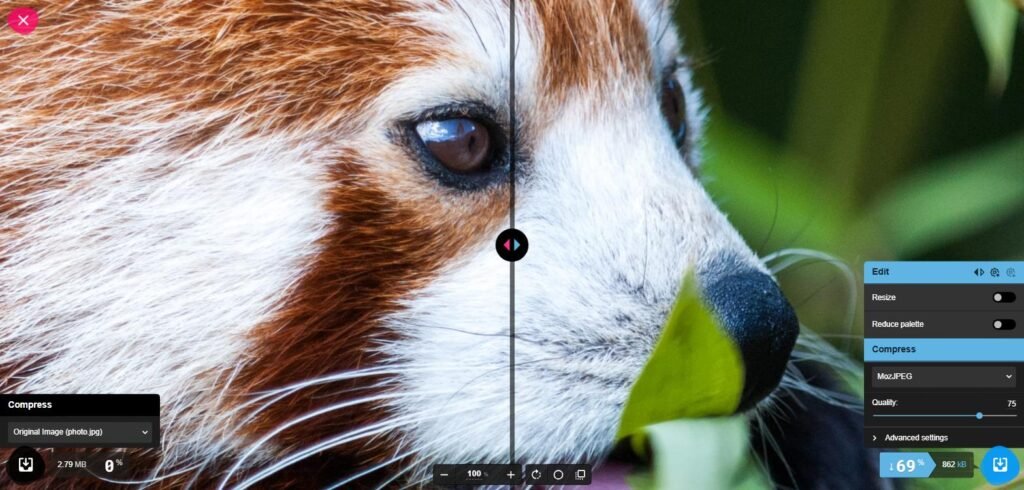
Real Squoosh compression: 2.79MB reduced to 862KB (69% smaller) at 75% MozJPEG quality
Step 4: Download the Compressed File
Once you’re happy with the size-to-quality tradeoff, click the download icon and the compressed file saves directly to your device. No conversion queue, no waiting, no “upgrade to remove watermark” prompt.
If you’re compressing images to speed up a website, it’s worth checking the rest of your page load time too – converting HEIC photos to JPG is another common step people miss when optimizing images for the web.
How Much Smaller Are We Talking?
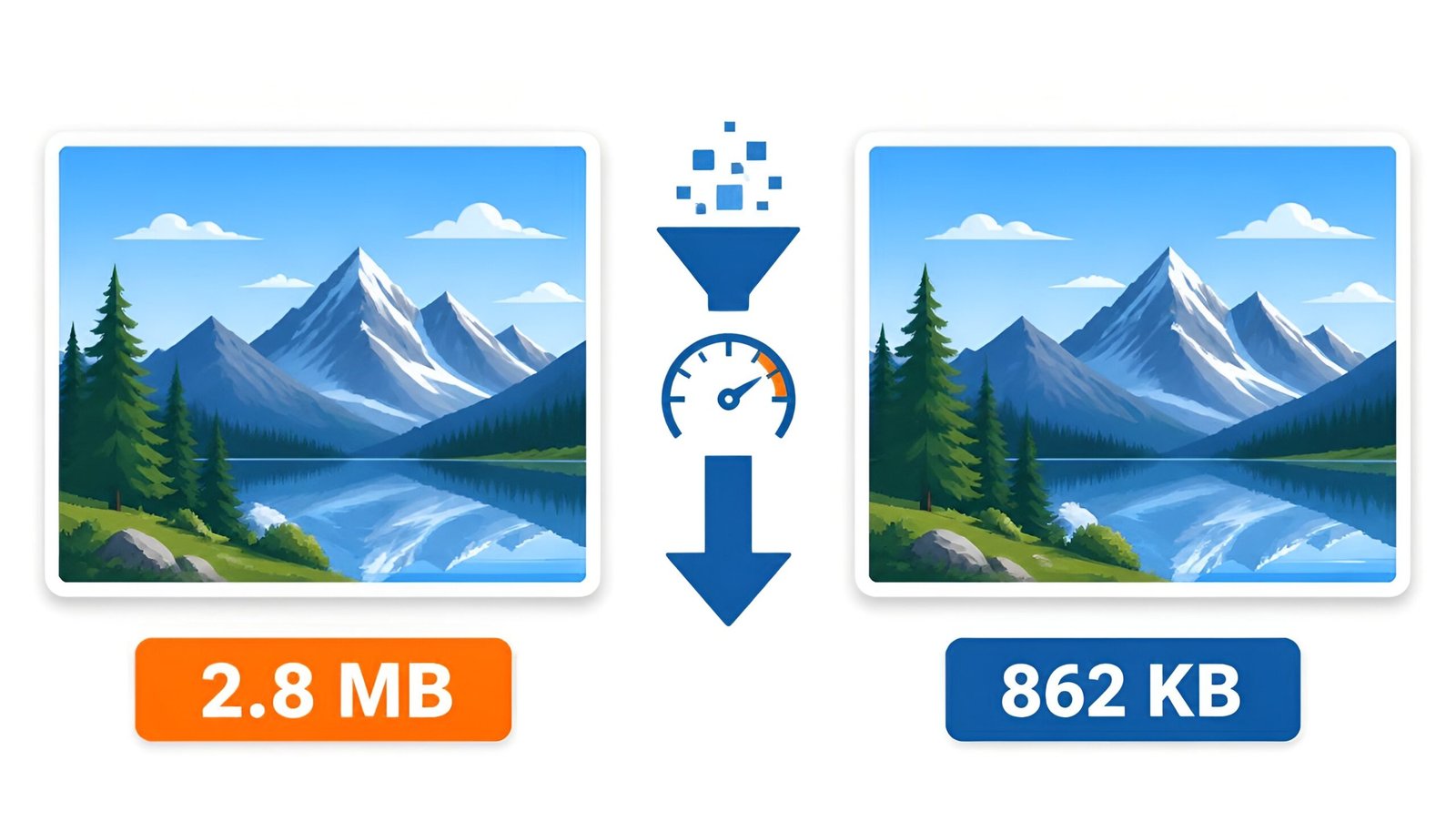
The actual savings depend on your original file, but it’s common to see a photo shrink by 60-80% with no visible quality loss at normal screen sizes. A 4MB phone photo can often come down to under 500KB, which matters a lot if you’re uploading images to a website, since large images are one of the most common causes of slow page load times.
When You Might Want a Different Tool
Squoosh handles one image at a time, so if you need to compress dozens of files at once, a batch tool will save more time even if it’s less precise. But for anyone who just needs to shrink a handful of photos without installing anything or creating an account, Squoosh is hard to beat.
Tested on: Chrome, Edge, Firefox (desktop) – Updated August 2026
Tags: compress images online free no watermark, squoosh webp vs jpeg quality, reduce photo file size without losing quality