Download Slack takes under a minute on its own, but the download isn’t really the part that trips people up. Slack doesn’t do anything useful until you’re inside a workspace, and most confusion happens after installing, not during.
If someone invited you to Slack, you already have a workspace waiting. You need their invite link or your work email, not a fresh signup. Starting your own workspace from scratch works differently: head to slack.com/get-started and set one up with your email.
How to Download Slack on Windows or Mac
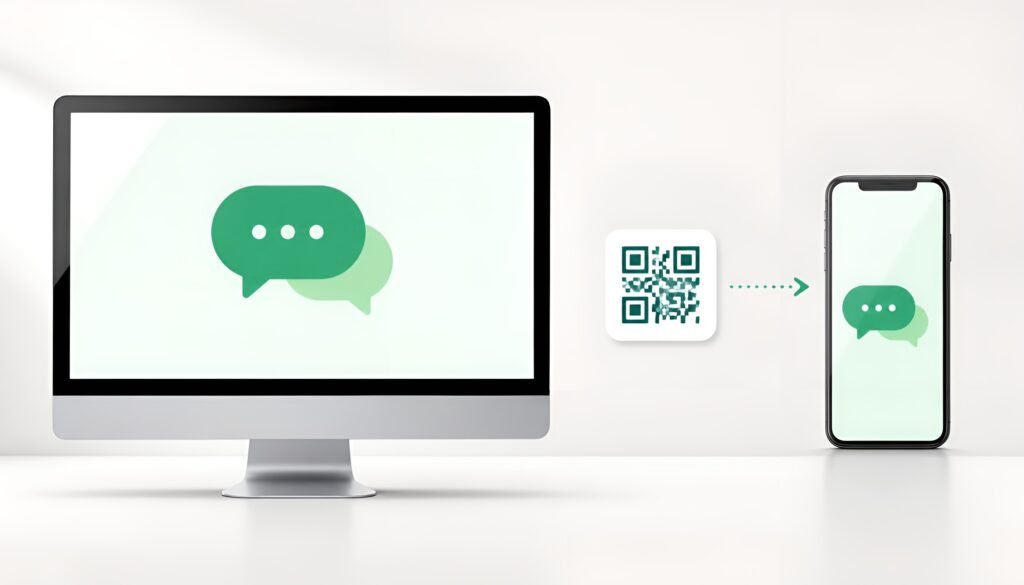
slack.com/downloads detects your operating system automatically and hands you the right installer. Run it, then sign in with your workspace URL and email, or paste an invite link directly if that’s what you were given. On mobile, search “Slack” in the App Store or Google Play and sign in the same way.
None of this actually requires the app at all, which is worth knowing before you download Slack onto every device you own. Slack runs completely in a browser at your workspace’s URL (something like yourteam.slack.com). The desktop app mainly buys you better native notifications, not any real functionality you couldn’t get otherwise.
Download Slack on iPhone or Android
Search “Slack” in the App Store or Google Play, install it, and sign in with your workspace URL and email or your invite link. Mobile and desktop notification settings are handled separately, which matters more than it sounds once you set up the notification fix below.
The Free Plan Detail Nobody Mentions Before You Download Slack
Slack’s free plan only keeps your most recent 90 days of messages searchable. Older messages don’t get deleted. They just quietly drop out of search and scrollback until the workspace upgrades to a paid plan. Teams using Slack as a searchable record of decisions tend to discover this the hard way, usually months in, when an old message they need has stopped showing up.
Paid plans start around $7.25 per user per month and restore full history immediately on upgrade, so nothing already written is ever actually lost. It just sits inaccessible until then.
Turning Off the Notification Noise After You Download Slack
Slack’s defaults ping you for nearly everything on every signed-in device, and this is the single most common reason people mute the whole app within a week. Fix it early. Click your workspace name in the top left, go to Preferences, then Notifications, and switch from “All new messages” to “Direct messages, mentions & keywords.” Desktop and mobile notification settings are separate from each other. If you’re only getting pinged on one device, check that device’s settings specifically rather than assuming something’s broken.
Before You’re Fully Set Up, Check These
- Confirm you’re in the right workspace if your account belongs to more than one – switch from the icons on the left sidebar (desktop) or a swipe menu (mobile)
- If notifications aren’t coming through at all, check your device’s system-level notification permissions for Slack, not just Slack’s own settings – both need to allow it
- Decide early whether you need the desktop app or if browser access covers how you’ll actually use it
If you’re setting up several team tools at once, our guide on downloading and setting up Discord covers similar notification and workspace gotchas from a different platform.
Final Thoughts
The download itself is the easy part. Knowing you need a workspace before Slack does anything, and getting notifications under control in the first few minutes, saves the usual first-week frustration that has nothing to do with installation at all.
Tested on: Windows 11 24H2, macOS Sequoia, iOS 18 – Updated September 2026