Microsoft Just Admitted It Can’t Fix This Windows 11 Bug
If you’re stuck in a BitLocker recovery loop, you already know the pattern: your PC restarts, instead of the desktop you get a blue screen asking for a 48-digit BitLocker recovery key. You find it, type it in carefully, and Windows boots normally. Relief – until the next restart, when the exact same screen shows up again. And again.
This isn’t a one-off glitch, and it isn’t something you did wrong. It’s tied to a Secure Boot certificate expiration rolling out across the entire PC industry since June 2026 – the original certificates most PCs shipped with back around 2011 are aging out, and manufacturers are racing to push replacements through BIOS updates. On some machines, HP EliteBook and Dell Precision models especially, that transition breaks cleanly. On others, it doesn’t. Microsoft has confirmed there’s no single patch that fixes this for every affected device.
So the recovery key you keep re-entering isn’t the actual fix. Here’s what is.
Getting Back In (Without Losing Your Data)
Before anything else, you need your recovery key. If you don’t have it memorized, check your Microsoft account at account.microsoft.com/devices/recoverykey first – most people who set up BitLocker through Windows have it backed up there automatically without realizing it. A printed copy or a USB drive works too. If this is a work laptop, your IT department has it on file even if you’ve never seen it.
Enter it, and Windows boots normally. But don’t stop there – if you close the laptop and call it fixed, you’ll very likely see the same screen again next time you restart.
What Actually Breaks the BitLocker Recovery Loop
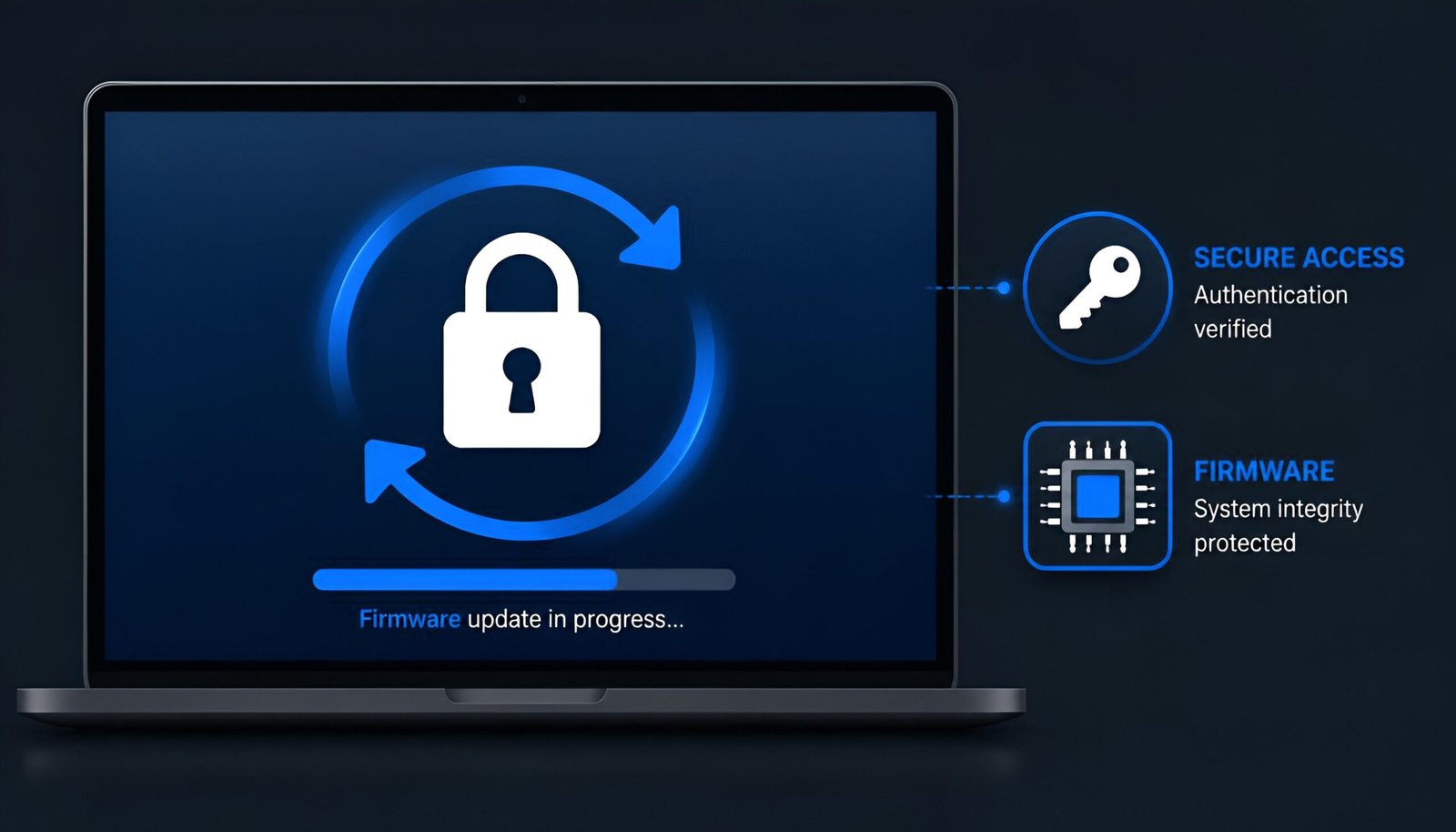
The recovery key gets you past the lock screen. It does nothing to fix why the lock triggered in the first place. That mismatch lives in your motherboard’s firmware, and only a firmware update touches it.
Once you’re back in Windows, check Settings > System > About for your exact PC model, then go to your manufacturer’s support site and look specifically for a BIOS or UEFI firmware update – not a driver, the actual firmware. Install it exactly as instructed, restart, and back up your recovery key one more time afterward, since the process can generate a new one. This is the step that reseals BitLocker against your PC’s current Secure Boot state, which is what actually stops the loop from repeating.
One caution worth knowing: some manufacturer firmware updates released during this same transition period have themselves triggered the exact loop they were supposed to prevent. Check your manufacturer’s release notes for known issues on your specific model before installing.
If There’s No Firmware Fix Yet
Not every manufacturer has shipped a working update for every model yet, so the BitLocker recovery loop can keep repeating even after you’ve tried the steps above. If you’ve checked and there’s nothing available, or the loop continues after updating, disabling Secure Boot temporarily is the workaround people are using in the meantime. Restart into your BIOS/UEFI settings (Del, F2, or F10 depending on your manufacturer), find Secure Boot under the Security or Boot tab, and turn it off. Boot back into Windows, install any pending Windows and firmware updates while it’s disabled, and re-enable Secure Boot once your manufacturer ships a fix that actually resolves the certificate mismatch.
This does reduce your protection against certain boot-level malware while it’s off, so treat it as a bridge, not a permanent setting.
What If You Don’t Have the Recovery Key at All
This is the situation with no easy answer. Check every account tied to the PC – personal Microsoft account, work or school account if it’s a managed device – and ask your IT department directly if this is a work machine, since they almost always have it archived even when individual users don’t. Without the key, getting back into an encrypted drive is genuinely difficult and may require a professional data recovery service, with no guarantee of success. This is exactly why saving the key somewhere accessible before you ever hit this screen matters more than anything else in this article.
Not the Same as an UNMOUNTABLE_BOOT_VOLUME Error
It’s easy to confuse this with other boot failures since both look alarming and both stop you from reaching your desktop. But they’re different problems with different causes. UNMOUNTABLE_BOOT_VOLUME is a stop code tied to Windows failing to read your boot partition, usually from a bad update or disk corruption – not Secure Boot certificates. If that’s what you’re actually seeing, our UNMOUNTABLE_BOOT_VOLUME fix guide walks through that specific error instead.
If this BitLocker loop hasn’t hit you yet, the single most useful thing you can do today is save your recovery key somewhere outside the PC itself, and check for a manufacturer firmware update before you’re staring at that blue screen at an inconvenient moment.
Tested on: Windows 11 24H2 · Windows 11 25H2 – Updated August 2026
Tags: BitLocker recovery, Secure Boot, Windows 11, BIOS update, boot loop, HP, Dell