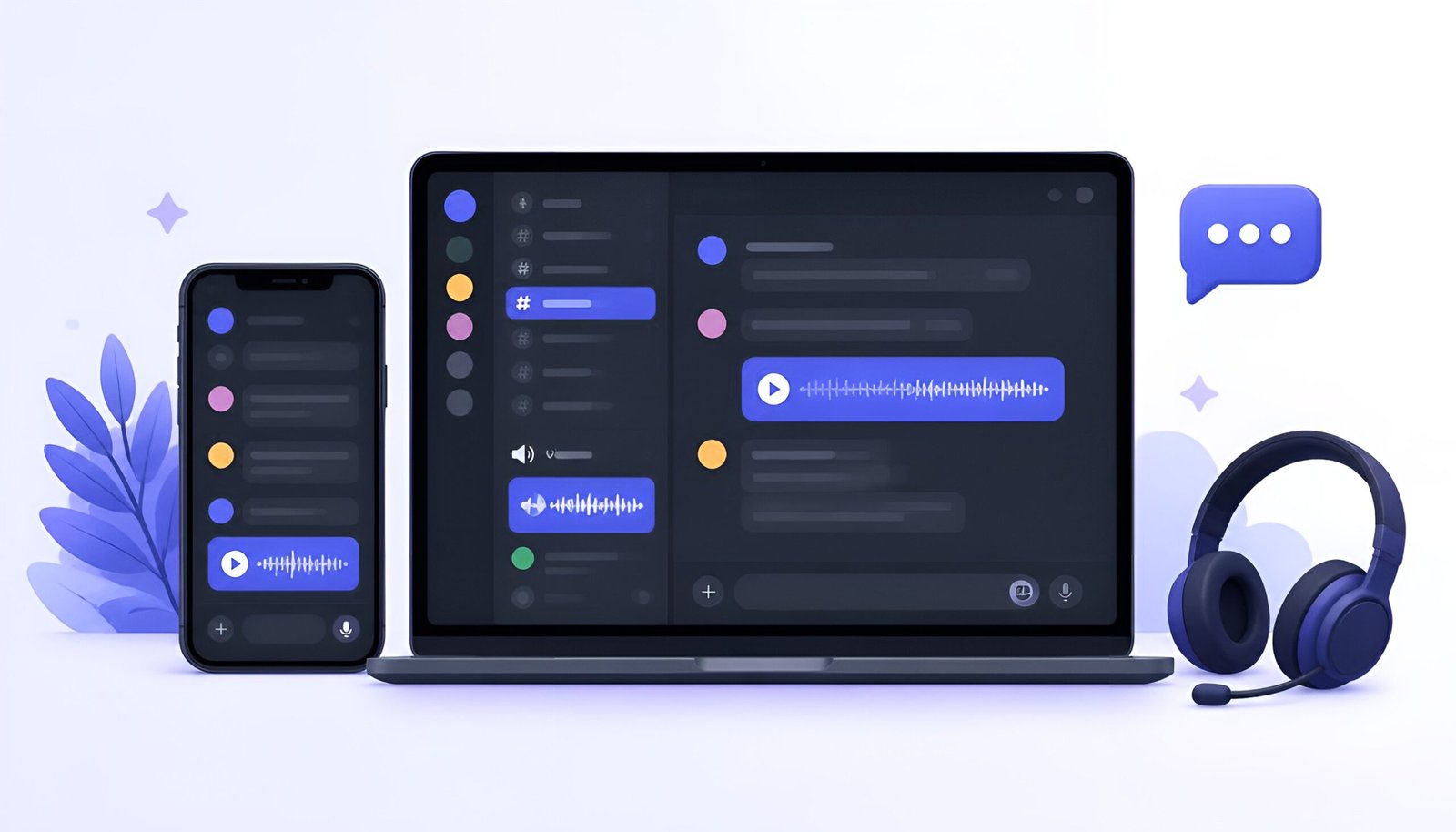
If you’re looking to download Discord for the first time, here’s everything you need. Whether you’re joining a gaming server, coordinating with a study group, or building a community around a shared interest, Discord has become the go-to platform for real-time voice, video, and text communication. With over 650 million registered users, chances are the people you want to talk to are already on it.
If you’re setting up Discord for the first time – or reinstalling on a new device – this guide walks you through every platform, explains what’s new in 2026, and tells you what the free plan actually includes before you consider paying for anything.
What’s in this guide:
- How to download Discord on Windows and Mac
- How to download Discord on iPhone and Android
- How to use Discord in the browser without downloading
- First-time setup – what to do when you open it
- What’s new in Discord in 2026
- Free vs Discord Nitro – what you actually need
- Common problems and fixes
How to Download Discord on Windows PC
Download Discord for Windows – Official Site
- Go to discord.com/download and click Download for Windows
- Run the downloaded
DiscordSetup.exefile - Discord installs automatically and opens immediately – no settings to configure during install
- Log in or create a free account
System requirements: Windows 10 or later (64-bit). Discord also runs on Windows 7 and 8, but these are no longer officially supported and performance may vary.
Discord is also available on the Microsoft Store – search “Discord” and install from there for automatic updates through the Store.
How to Download Discord on Mac
Download Discord for Mac – Official Site
- Go to discord.com/download and click Download for Mac
- Open the downloaded
.dmgfile - Drag Discord to your Applications folder
- Open Discord from Applications and sign in or create an account
System requirements: macOS 10.15 (Catalina) or later for Intel Macs. macOS 11.0 or later for Apple Silicon (M1/M2/M3/M4). Discord runs natively on Apple Silicon – no Rosetta required.
How to Download Discord on iPhone
Download Discord for iPhone – Free
- Search “Discord” on the App Store and install the official app
- Open Discord and tap Register to create a free account
- Enter your email, username, and password
- Verify your email address when prompted
- Allow microphone and notification permissions for voice and alerts
How to Download Discord on Android
Download Discord for Android – Free
- Search “Discord” on Google Play and install the official app
- Open and tap Register – same process as iPhone
- Log in on mobile with the same account you use on desktop – everything syncs
Use Discord in the Browser – No Download Required
If you don’t want to install anything, Discord works directly in Chrome, Firefox, Safari, or Edge.
Open Discord in Browser – No Install
The browser version has some limitations – push notifications don’t work as reliably, and some features (like screen share on certain browsers) require additional permissions. For regular use, the desktop or mobile app is recommended.
First-Time Setup – What to Do When You Open Discord
Join a server
Servers are Discord’s version of communities. You join via an invite link. If someone sent you a link, click it to join. To find public servers on your own, click the Compass icon (Discover) in the left sidebar and browse by topic – gaming, music, tech, study groups, and more.
Set up your profile
Click your username at the bottom left then Edit Profile. Add an avatar, a short bio, and optionally link your other accounts (Steam, Xbox, Twitch, YouTube). Your profile appears when others click your name in any server.
Configure voice settings
Settings (gear icon) then Voice & Video then select your input and output devices. Run the mic test to confirm Discord picks up your voice correctly. Set Input Mode to “Push to Talk” if you’re in a noisy environment – this only sends audio when you hold a key.
Set up notifications
By default, Discord notifies you for everything – which quickly becomes overwhelming in active servers. Right-click any server then Notification Settings then change to “Only @mentions” for servers you don’t need to monitor constantly.
What’s New in Discord in 2026
Screenshare Zoom and Pan
One of the most practically useful updates of 2026. When watching someone’s screenshare, you can now zoom and pan using your mouse’s scroll wheel or trackpad – no more squinting at tiny text on someone’s shared screen. Works in both voice channels and Go Live streams.
Invite to Voice – Easier Group Calls
While in a voice channel, a new “Invite to Voice” option recommends both server members and outside friends you can pull into the call. One tap to invite, no need to @ mention in text chat first.
In-App Game Shop
Discord has expanded its in-app purchasing to include game items directly in the app. You can now browse, purchase, gift, and wishlist in-game items for supported games without leaving Discord. Currently available for Rust and expanding to more titles.
Desktop Settings Redesign
The Settings pages for Notifications, Voice and Video, Clips, and Streamer Mode have been redesigned with cleaner layout, better organization, and clearer language. Much easier to find what you’re looking for than before.
Desktop Performance Improvements
The desktop app received significant performance upgrades in early 2026 – faster load times, smoother scrolling, and reduced memory usage. If you haven’t updated recently, the current version feels noticeably snappier than versions from a year ago.
Teen Safety Features (Global Rollout)
Discord launched enhanced teen safety features globally in 2026, including updated communication settings, restricted access to age-gated spaces, and content filtering for users under 18. These changes apply automatically – most adult users won’t notice any difference.
Download Discord Free vs Nitro – What Do You Actually Need?
| Feature | Free | Nitro Basic ($3.99/mo) | Nitro ($9.99/mo) |
|---|---|---|---|
| Voice and video calls | Yes | Yes | Yes |
| Text messaging | Yes | Yes | Yes |
| Screen sharing | 720p / 30fps | 720p / 60fps | 1080p / 60fps |
| Custom emoji in any server | Own servers only | Yes | Yes |
| File upload limit | 10 MB | 50 MB | 500 MB |
| Animated avatar | No | Yes | Yes |
| Server boosts per month | None | None | 2 boosts |
| Best for | Most users | Emoji + better uploads | HD streaming, server boosting |
For the vast majority of users, the free plan is completely sufficient. Voice calls, video calls, screen sharing, text messaging, server creation – all free. Nitro is mainly for people who want custom emoji across servers, higher quality streaming, or larger file uploads.
Download Discord – Common Problems and Fixes
No sound in voice channels
- Settings then Voice & Video then check that the correct output device is selected
- Make sure your system volume isn’t muted and Discord has permission to use your speakers
- Try the “Reset Voice Settings” button at the bottom of Voice & Video settings
Others can’t hear me
- Check that your microphone is selected in Settings then Voice & Video then Input Device
- Make sure you’re not accidentally muted (microphone icon at the bottom left – should not have a strikethrough)
- Check that Discord has microphone permission in your system settings (Windows Privacy Settings or Mac System Settings then Privacy then Microphone)
Discord not opening / stuck on loading screen
- Close Discord completely (including the system tray) and reopen
- If still stuck: press Ctrl+R (Windows/Linux) or Cmd+R (Mac) to reload
- Clear Discord cache: close Discord then delete the Cache folder in %AppData%\discord (Windows) or ~/Library/Application Support/discord (Mac) then reopen
Screen share showing black screen
- On Windows: try running Discord as administrator (right-click then Run as administrator)
- Disable hardware acceleration in Discord: Settings then Advanced then Hardware Acceleration then off
- If sharing a specific app window, try sharing the full screen instead
For a deeper walkthrough of audio-specific issues, our guide on fixing Discord no sound and mic problems covers 10 additional fixes in detail.
Frequently Asked Questions
Is Discord free?
Yes. Discord is free with no required subscription. The free plan includes all core features – voice, video, text, servers, and screen sharing. Discord Nitro ($3.99-$9.99/month) adds cosmetic and quality-of-life upgrades but is entirely optional.
Do I need an account to use Discord?
You need an account to send messages and join servers. You can join a voice channel temporarily as a guest via some invite links, but full functionality requires a free registered account.
Can I use Discord without the app?
Yes. Discord works in Chrome, Firefox, and other modern browsers at discord.com/app. The browser version is fully functional for text and voice, though push notifications and some features work more reliably in the desktop app.
Is Discord safe for kids?
Discord requires users to be at least 13 years old. In 2026, Discord rolled out global teen safety features that automatically apply age-appropriate restrictions for users under 18, including content filters and restricted access to age-gated spaces. Parents can also use Discord’s Family Center to monitor their teen’s activity.
What’s the difference between a server and a channel?
A server is the top-level community – like a house. Channels are the rooms inside – separate spaces for different topics (general chat, gaming discussion, voice hangout, etc.). You can be a member of many servers simultaneously, each with its own channels.
Final Thoughts
Discord has grown well beyond gaming – it’s now used for study groups, hobby communities, friend groups, professional teams, and fan communities for everything from music to coding to cooking. The free plan is genuinely full-featured, and the 2026 updates have made it faster and easier to use than ever.
Download it now and join whatever community brought you here:
Download for Windows / Mac Download for iPhone Download for Android