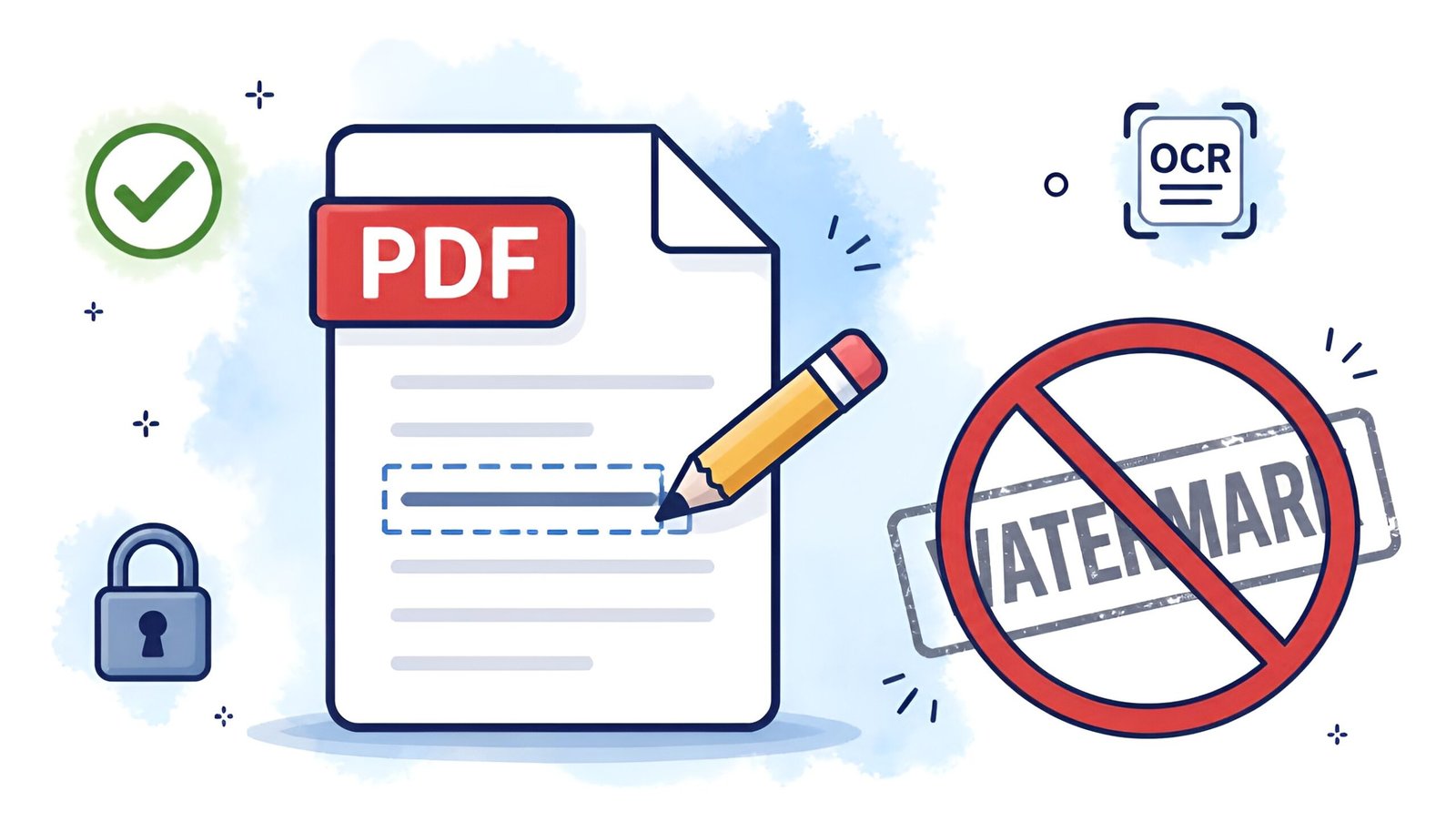
Looking for a free PDF editor that actually works? You just need to edit one sentence in a PDF – simple enough, right?
Then you download what looks like a free PDF editor, make your edit – and find out the “free” version slaps a giant watermark across every page. Or it lets you edit but won’t let you save. Or it’s free for 7 days, then suddenly $12 a month.
I’ve been through all of it. So in this guide, I’m only listing free PDF editors that are genuinely free – no watermarks, no time limits, no surprises. Every tool here has been tested on Windows 11.
What you’ll find in this guide:
- The 5 best free PDF editors for Windows – ranked and compared
- What each tool is best for (and who should skip it)
- A side-by-side comparison table
- Direct download links for each tool
If you’re also looking to free up space on your devices, check out our guide on installing Google Drive on PC.
Quick Comparison: Free PDF Editors at a Glance
| Tool | Watermark-free | Works offline | OCR | Best for |
|---|---|---|---|---|
| PDFgear | ✅ Yes | ✅ Yes | ✅ Yes | Best overall |
| PDF24 Creator | ✅ Yes | ✅ Yes | ✅ Yes | Most features free |
| LibreOffice Draw | ✅ Yes | ✅ Yes | ❌ No | Open-source fans |
| Smallpdf | ✅ Yes | ❌ No | ✅ Yes | Quick one-off edits |
| Sejda | ✅ Yes | ✅ Yes | ❌ No | Simple text edits |
1. PDFgear – The Best Free PDF Editor Overall
If you only want one recommendation, this is it. PDFgear quietly became the best free PDF editor available in 2026 – and most people haven’t heard of it yet.
It’s a full desktop app for Windows with zero limitations. No watermarks. No feature locks. No account required. You get direct text editing, image editing, annotation tools, form filling, merging, splitting, and even an AI reading assistant – all completely free.
I was skeptical at first. Tools that claim to be “completely free” usually aren’t. However, after using PDFgear for a few weeks, I haven’t found a single catch. It genuinely rivals paid tools like Adobe Acrobat for everyday use.
Who it’s best for: Anyone who needs a reliable, full-featured PDF editor without spending anything.
Limitation: Windows and Mac only – no Linux version.
2. PDF24 Creator – The Most Generous Free PDF Tool
PDF24 Creator has been around for years, and it keeps getting better. It’s a Windows desktop app that bundles an enormous number of PDF tools into one free package – editing, merging, splitting, compressing, converting, OCR, and more.
What makes PDF24 stand out is that it genuinely doesn’t hold anything back. The full feature set is free, forever. There’s no premium tier. The tool is supported by non-intrusive ads on its web version, but the desktop app is completely clean.
It also works entirely offline, which matters if you’re dealing with sensitive documents you don’t want uploading to a server.
Who it’s best for: Windows users who want a Swiss Army knife of PDF tools with no restrictions.
Limitation: The interface feels a bit dated compared to newer tools like PDFgear.
3. LibreOffice Draw – The Best Open-Source Free PDF Editor
LibreOffice Draw is part of the free, open-source LibreOffice suite. It’s not a dedicated PDF editor – it’s a drawing and vector graphics tool that also opens and edits PDFs surprisingly well.
When you open a PDF in LibreOffice Draw, it converts the document into editable objects. You can move text blocks, change fonts, delete elements, and add new content. For straightforward edits, it works well. For complex documents with lots of formatting, things can shift around in unexpected ways.
The biggest advantage: it’s 100% open-source and has no corporate strings attached. If privacy and transparency matter to you, LibreOffice is the most trustworthy option on this list.
Who it’s best for: Users who prefer open-source software and don’t need OCR.
Limitation: PDF layout can shift after editing – not ideal for heavily formatted documents.
4. Smallpdf – Best Free PDF Editor for Quick Online Edits
Smallpdf is the cleanest, most beginner-friendly PDF tool on this list. There’s nothing to install – you just go to the website, drag your file in, make your edit, and download. Done in under a minute.
The interface is so simple that even someone who’s never edited a PDF before can figure it out immediately. It handles all the basics: text editing, image insertion, annotations, merging, splitting, compressing, and converting.
The free plan limits you to 2 tasks per day, which is enough for occasional use. No watermarks are added to your files either way.
Who it’s best for: Occasional users who want a fast, no-install solution for simple edits.
Limitation: 2 tasks per day on the free plan. Requires an internet connection.
Open Smallpdf – No Download Needed
5. Sejda – Best Free PDF Editor for Simple Text Edits
Sejda is what I’d call a “just enough” editor. It doesn’t try to do everything – it focuses on doing the essentials cleanly. Text editing, form filling, signing, page management, and redaction all work well and feel intuitive.
Both an online version and a desktop app for Windows are available. The free plan allows 3 tasks per day with no watermarks. If you only occasionally need to tweak a sentence or fill in a form, 3 tasks per day is more than enough.
Who it’s best for: Users who need to edit text or fill forms a few times a week.
Limitation: 3 tasks per day on the free plan. No OCR on the free tier.
Which Free PDF Editor Should You Download?
Here’s how to pick based on your situation:
- You edit PDFs regularly and want the best free tool: Download PDFgear. Full stop.
- You want the maximum number of PDF tools for free: PDF24 Creator is unbeatable.
- You care about open-source and privacy: LibreOffice Draw is your pick.
- You just need to make a quick edit right now: Smallpdf – no download, no setup.
- You occasionally fill in forms or edit a few lines of text: Sejda handles this perfectly.
My personal setup: I use PDFgear for almost everything on my desktop. When I’m away from my main PC, I fall back on Smallpdf in the browser. Between the two, I’ve never needed to pay for a PDF editor.
Frequently Asked Questions
Is there a truly free PDF editor with no watermarks?
Yes – PDFgear and PDF24 Creator are both completely free with no watermarks on any output. LibreOffice Draw is also watermark-free as an open-source tool.
Can I edit a scanned PDF for free?
Yes, but you need an editor with OCR (Optical Character Recognition). Both PDFgear and PDF24 Creator include free OCR that converts scanned images into editable text.
What’s the difference between a PDF reader and a PDF editor?
A PDF reader (like Adobe Reader) lets you view, highlight, and annotate PDFs. A PDF editor lets you change the actual content – text, images, and page structure. All tools in this guide are editors, not just readers.
Are these tools safe to download?
All tools listed here are reputable and widely used. PDFgear, PDF24, and LibreOffice are all open about their operations and have clean safety records. As always, download from the official websites linked in this guide – not from third-party sources.
Should I upload sensitive documents to online tools?
For confidential files, avoid online tools and stick to desktop apps like PDFgear, PDF24 Creator, or LibreOffice Draw. These process your files locally on your device without uploading anything to a server.
Final Thoughts
The days of needing to pay for a PDF editor are over. PDFgear alone does everything Adobe Acrobat does for everyday tasks – and it costs nothing. PDF24 Creator covers the gaps with a tool for every PDF job imaginable, also for free.
Pick a free PDF editor from this list, download it, and stop letting watermarks ruin your documents.