Your iPhone Photos Won’t Open, and It’s Not a Bug
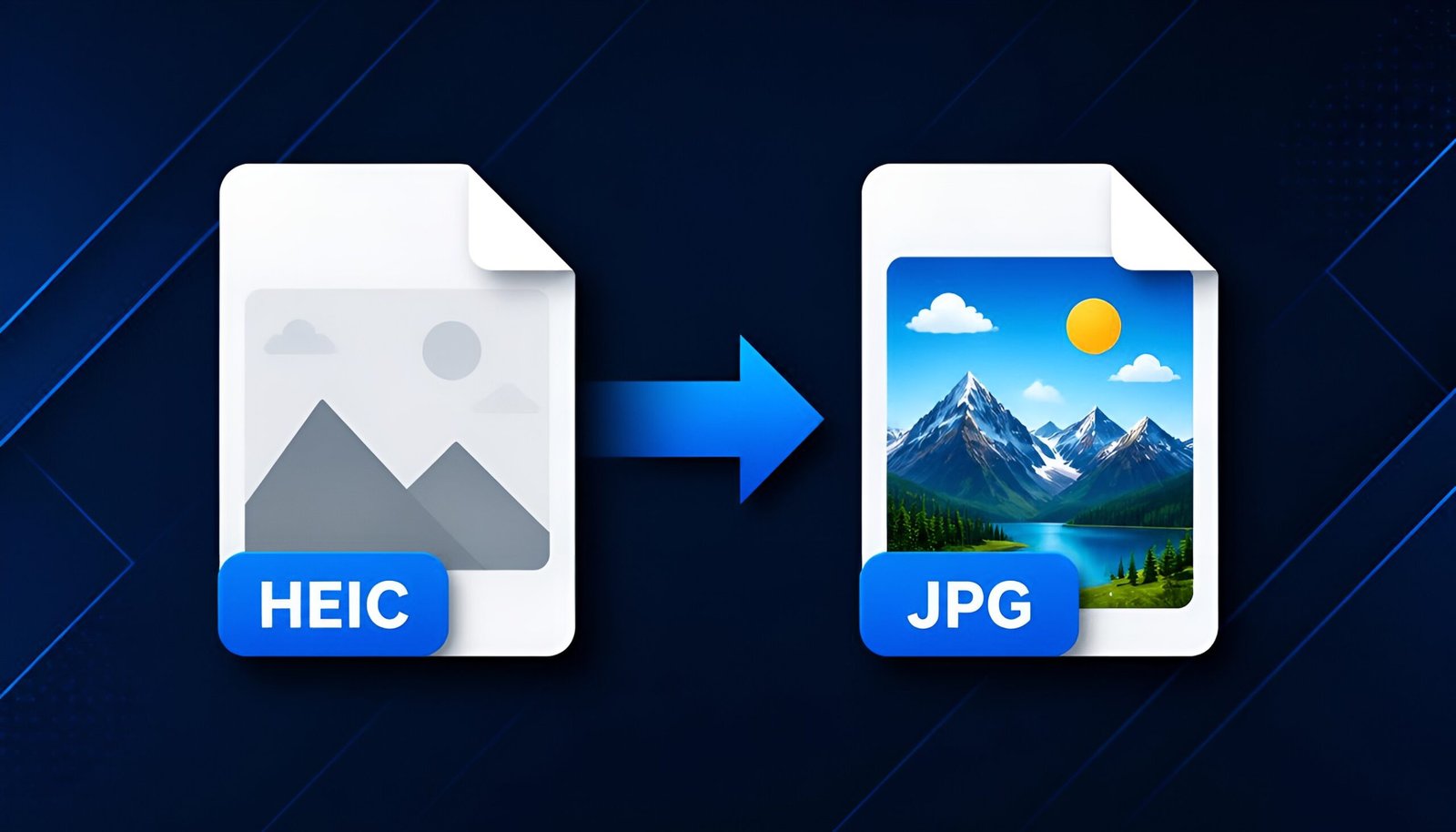
If you need to convert HEIC to JPG on Windows, here’s the situation you’re probably in: you AirDrop or transfer a photo from an iPhone to your PC, double-click it, and Windows either shows a broken thumbnail or refuses to open it at all. The file ends in .heic – Apple’s default photo format since 2017 – and unlike JPG, older versions of Windows don’t know what to do with it out of the box. The good news: converting it costs nothing and doesn’t require installing any third-party software, no matter what a lot of ad-heavy “free converter” sites want you to believe.
Convert HEIC to JPG With Paint (Recent Windows 11 Update)
Since a 2024 update, Windows 11’s built-in Paint app can open HEIC files natively – no extensions, no downloads. Right-click the HEIC file, choose Open with > Paint. If Paint opens it without complaint, you’re set: go to File > Save As > JPEG picture, pick a location, and you’re done. This is the simplest path if it works on your machine.
If Paint throws an error trying to open the file instead, your Windows installation isn’t fully updated to the version that added this feature, and you’ll need the second method below.
Method 2: Photos App With the HEIF Extension
If Paint doesn’t cooperate, Windows’ Photos app can still handle the conversion – it just needs one small, free, official extension first. Open the Microsoft Store, search for HEIF Image Extensions, and install it (it’s a genuine Microsoft-published extension, not a third-party app masquerading as one).
Once that’s installed, open the HEIC file with Photos – it should display normally now. Click the three-dot menu, choose Save as, and in the dropdown next to “Save as type,” select JPG. Name the file and save.
Converting Many Photos at Once
Both ways to convert HEIC to JPG above work one file at a time, which is fine for a handful of photos but tedious for a folder full of them from a recent trip. For batch conversion without installing separate software, File Explorer’s built-in image printing/export tools can sometimes handle a folder if the HEIF extension is installed – but for a genuinely large batch, this is the point where a dedicated free batch converter actually earns its place, rather than doing 200 individual Save As operations by hand.
If you go that route, stick to well-known, actively maintained tools rather than the first ad-covered download link that appears in search results – a “HEIC converter” that bundles unwanted toolbars or browser extensions defeats the purpose of avoiding third-party software in the first place.
Why This Happens in the First Place
Apple switched to HEIC as its default photo format because it compresses images significantly smaller than JPG at similar visual quality – genuinely useful for phone storage. The tradeoff is that HEIC wasn’t broadly supported outside Apple’s ecosystem for years, which is why Windows needed catching up through updates and extensions rather than having native support from day one. If you’d rather avoid this conversion step entirely going forward, you can change your iPhone’s camera format: Settings > Camera > Formats, and switch from “High Efficiency” to “Most Compatible,” which saves new photos as JPG automatically instead of HEIC. If you’re also dealing with lost or corrupted photos rather than just format issues, our guide to the best free file recovery software for Windows covers that separately.
Tested on: Windows 11 23H2 · Windows 11 24H2 · Windows 11 25H2 – Updated August 2026
Tags: how to convert heic to jpg windows 11 free, HEIF image extensions Photos app windows 11, iPhone photos wont open windows 11 fix