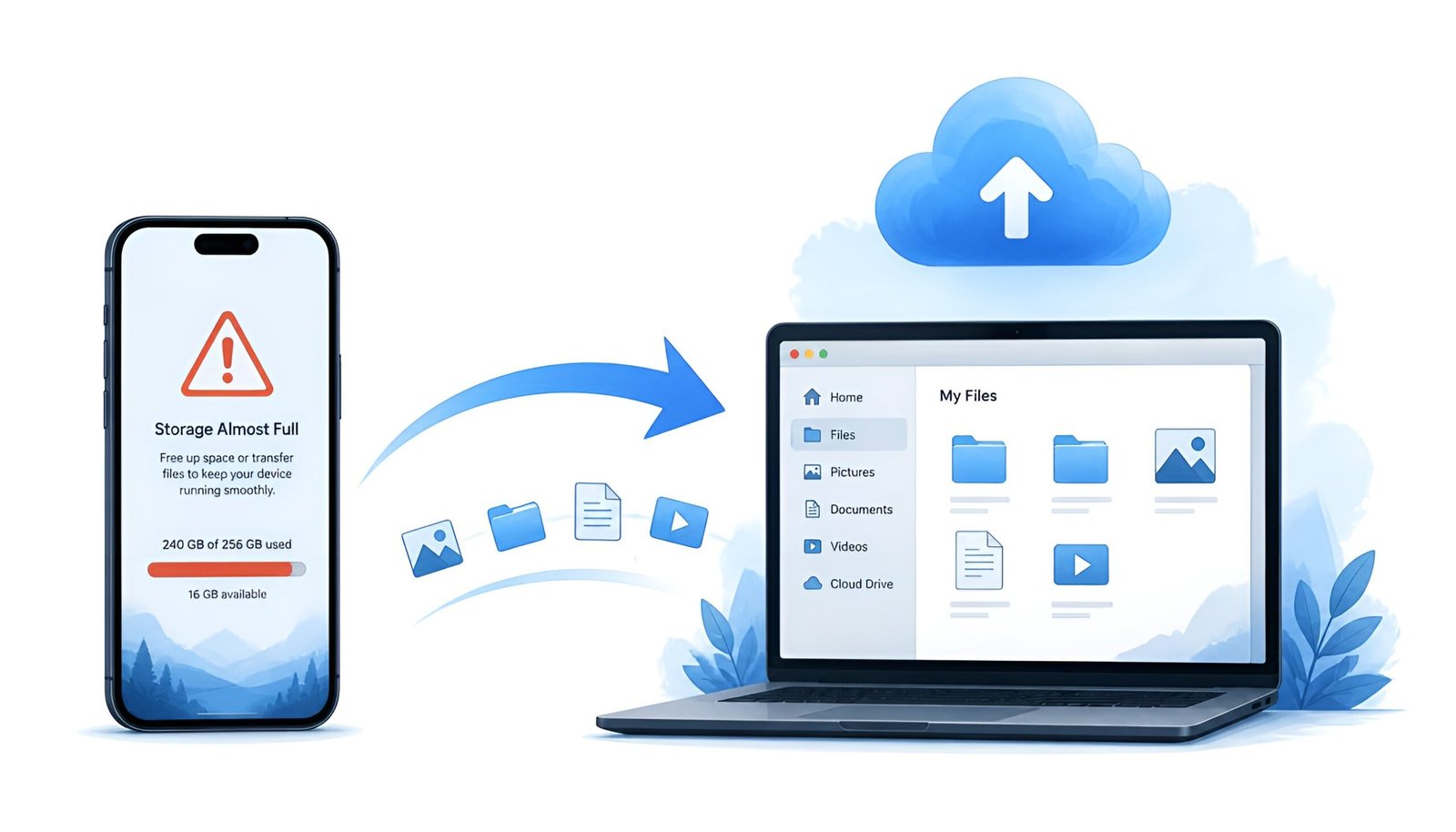
I know the feeling. You pick up your phone to take a photo and get that dreaded message: “Storage almost full.” If you’re ready to install Google Drive on your PC and fix this for good, you’re in the right place.
For me, the culprit was Google Drive. Hundreds of documents, photos, and work files sitting on my phone, syncing constantly, eating up gigabytes I didn’t have. In fact, the fix turned out to be simpler than I expected: move Google Drive to my PC, and let my phone breathe again.
In this guide, I’ll show you exactly how to install Google Drive on your Windows PC or Mac – and why doing so might be the best thing you do for your phone’s storage today.
What you’ll learn in this guide:
- Why installing Google Drive on PC solves your phone storage problem
- How to download and install Google Drive on Windows (step-by-step)
- How to install Google Drive on Mac
- How to choose between streaming and mirroring modes
- Common problems and how to fix them
- Tips to get the most out of Google Drive on desktop
If you’re new to ClickFixDaily, you can also check out our About page to see what kind of tech guides we cover here.
Why You Should Move Google Drive to Your PC
Here’s what most people don’t realize: Google Drive on your phone stores a local copy of your files. Every time something syncs, it takes up real storage space on your device. On a 128GB phone, that adds up fast – especially if you share documents with colleagues or back up photos automatically.
Once you install Google Drive on your desktop, this problem solves itself in two ways:
- Files stay in the cloud – your PC accesses them on-demand without permanently storing every single one
- Your phone gets lighter – once you move your workflow to desktop, you can reduce or disable Google Drive sync on your phone
After I made the switch, my phone freed up over 4GB overnight. I didn’t delete a single file.
How to Install Google Drive on Windows PC
Step 1: Download Google Drive for Desktop
Head to the official Google Drive download page and grab the installer:
👉 Download Google Drive for Desktop – Official Page
Click “Download Drive for desktop”. The file (GoogleDriveSetup.exe) is around 150MB and downloads quickly on most connections.
Step 2: Run the Installer
- Open the downloaded
GoogleDriveSetup.exefile - You may see a Windows security prompt – click Yes to allow the installation
- Choose whether to add shortcuts to your desktop (recommended)
- The installer runs automatically – the whole process takes under two minutes
✅ Pro tip: Check “Add Google Docs, Sheets, and Slides shortcuts” during installation. This lets you open Google files directly from File Explorer without opening a browser.
Step 3: Sign In to Your Google Account
- Google Drive will open automatically after installation
- Click “Sign in with browser”
- Your browser opens – log in with your Google account
- Click “Open Google Drive” when prompted
- Google Drive now appears as a drive in Windows File Explorer (usually listed as G: or Google Drive)
How to Install Google Drive on Mac
Step 1: Download the Mac Version
Same download page, different file:
👉 Download Google Drive for Desktop (Mac)
The downloaded file will be a .dmg package.
Step 2: Install the App
- Open the
GoogleDrive.dmgfile - Double-click GoogleDrive.pkg inside the window
- Follow the installation prompts – click Continue and then Install
- Enter your Mac password if asked
Step 3: Sign In and Set Up
- Google Drive opens and asks you to sign in
- Click “Sign in with browser” and log into your Google account
- Google Drive appears in your Mac’s Finder sidebar under Locations
⚠️ Mac note: If you see a message about a System Extension being blocked, go to System Settings → Privacy & Security and click Allow. This is normal on macOS and required for Google Drive to work properly.
Streaming vs. Mirroring – Which One Should You Choose?
This is the setting most people skip – and it matters a lot for your storage situation.
| Mode | How it works | Storage used | Best for |
|---|---|---|---|
| Stream files | Files live in the cloud, accessed on demand | Minimal (only what you open) | Saving disk space |
| Mirror files | Files synced locally AND in the cloud | Full copy on your hard drive | Offline access, backups |
If your original problem was running out of storage, choose Stream files. Your files live in Google’s cloud and only download to your PC when you actually open them.
To set this: open Google Drive settings (click the Drive icon in your taskbar) → Preferences → under your Google Drive folder, select Stream files.
How Much Storage Do You Get for Free?
Google gives every account 15GB of free storage, shared across Google Drive, Gmail, and Google Photos. For most personal use, this is plenty to start with.
If you need more, Google One plans start at around $2.99/month for 100GB – but before you pay, it’s worth clearing out old Gmail attachments and Google Photos duplicates. In fact, most people recover several gigabytes without spending a cent.
Common Problems and Fixes
Even with a straightforward setup, a few things can occasionally go wrong. Here’s how to fix the most common ones.
❌ Google Drive Not Showing Up in File Explorer / Finder
- Restart your computer after installation
- Make sure you’re fully signed in – check the Drive icon in your taskbar
- Uninstall and reinstall from the official page if the drive still doesn’t appear
❌ Google Drive Syncing Slowly
- Check your internet connection speed
- Pause and resume sync from the Drive taskbar icon
- If you have thousands of files, initial sync can take hours – leave it overnight
❌ “Sign in failed” Error
- Make sure your browser isn’t blocking popups from Google
- Try signing in using a different browser (Chrome works best with Google Drive)
- Check that your Google account doesn’t have 2-step verification issues
❌ Google Drive Using Too Much CPU or RAM
- This usually happens during the initial sync – it settles down after the first run
- Go to Preferences → Bandwidth and set an upload/download speed limit
Tips to Get the Most Out of Google Drive on Desktop
Use it as your default save location. Point your Documents folder to your Google Drive folder. As a result, everything you save automatically goes to the cloud – no manual uploads ever.
Right-click to share instantly. In File Explorer or Finder, right-click any file in your Google Drive folder → Share. This gives you a shareable link without opening a browser.
Free up phone storage. Once you’ve set up Drive on your PC and confirmed everything syncs correctly, head to your phone’s Google Drive settings and disable “Make available offline” for any folders you don’t need on the go.
Use offline access for important files. In the Google Drive web interface, right-click any document and choose “Available offline”. This way, that file stays locally accessible even when your internet goes down.
Frequently Asked Questions
Is Google Drive desktop app free?
Yes. The Google Drive desktop app is completely free to download and use. You get 15GB of free storage with your Google account. Additional storage is available through paid Google One plans.
Can I use Google Drive on PC without internet?
In streaming mode, you need an internet connection to access files. However, any file you’ve opened recently may be cached temporarily. For reliable offline access, switch to mirror mode or mark specific files as “available offline.”
Does Google Drive slow down my PC?
After the initial sync, Google Drive runs quietly in the background and uses very little resources. If you notice slowness, check the bandwidth settings in Drive preferences and set limits on upload and download speeds.
What’s the difference between Google Drive and Google One?
Google Drive is the storage service and app. Google One is the paid subscription plan that gives you more storage space. Either way, you use Google Drive itself – whether you’re on the free 15GB tier or a paid Google One plan.
Can I install Google Drive on multiple computers?
Yes. You can install Google Drive on up to 5 computers using the same Google account. All devices stay in sync automatically.
Final Thoughts
If your phone storage is constantly full and Google Drive is part of the reason, moving to the desktop app is one of the easiest fixes out there. The installation takes less than five minutes, the setup is straightforward, and the payoff – a lighter phone and a much better file management experience – is immediate.
I’ve been using Google Drive on my desktop for over a year now, and I genuinely can’t imagine going back to managing files only on my phone. Give it a try.
Download Google Drive for desktop here: