Your C: Drive Didn’t Get Smaller. Windows Was Quietly Filling It.
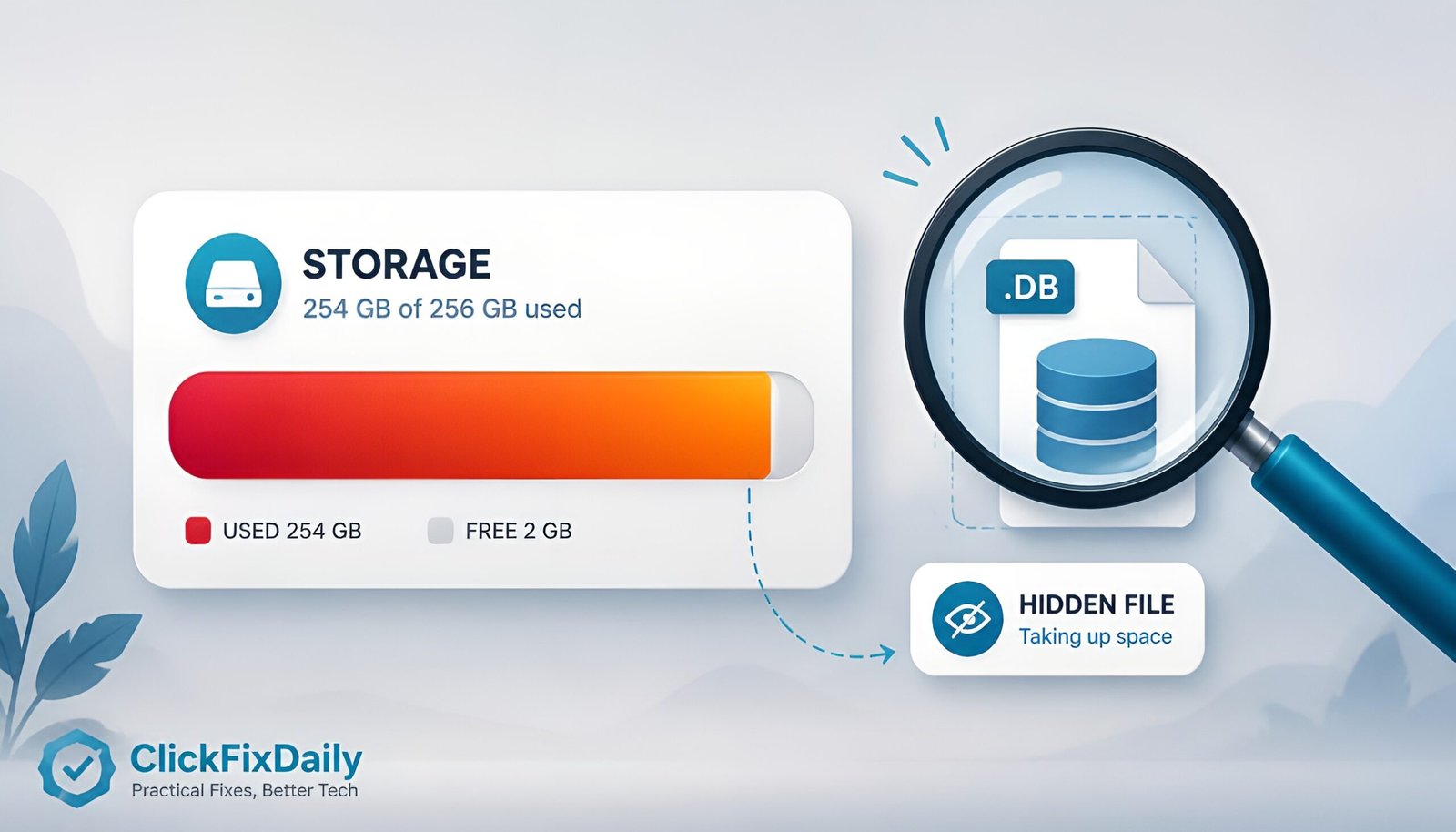
CapabilityAccessManager.db-wal is the file behind this. If you searched your way here, there’s a good chance Storage Sense told you your system drive is almost full and you have no idea why – no huge downloads, no new games, nothing. This is a real, confirmed Windows 11 bug that multiple outlets and Microsoft’s own July 2026 patch notes have been tracking, and it’s worth understanding exactly what’s happening before you start deleting random folders to free up space.
Quick Answer
A background file called CapabilityAccessManager.db-wal – which is supposed to stay a few megabytes – can silently balloon to tens or even hundreds of gigabytes on some Windows 11 PCs. Microsoft’s July 14, 2026 update, KB5101650, stops the file from growing further. Install it, reboot, and check your build number with winver (you want 26100.8875 or higher on 24H2, or 26200.8875 or higher on 25H2). But installing the update alone won’t necessarily shrink a file that’s already bloated – for that you may need to delete it manually, which this post walks through safely.
What Is CapabilityAccessManager.db-wal, Actually?
It’s not a virus or a hidden download – it’s part of the Windows service that tracks which apps have asked for permission to use things like your camera, microphone, location, or screen capture. Every time an app requests one of those permissions, Windows logs it. Under normal conditions that log file stays tiny. The bug causes the log (the “write-ahead log,” hence the .db-wal extension) to never get cleaned up properly, so it just keeps appending entries indefinitely.
The file lives at:
C:\ProgramData\Microsoft\Windows\CapabilityAccessManager\CapabilityAccessManager.db-wal
Reports collected across user threads and tech outlets describe sizes anywhere from a few gigabytes up to roughly 500GB on the worst-affected machines – enough to fill an entire budget laptop’s SSD with a file most people have never heard of and can’t find through normal “biggest files” searches unless they know to look in ProgramData.
How to Check If You’re Affected
You don’t need to guess. Two ways to check the file’s actual size:
| Method | Steps |
| File Explorer | Paste C:\ProgramData\Microsoft\Windows\CapabilityAccessManager into the address bar, enable “Hidden items” under the View menu if ProgramData doesn’t show up, then right-click the .db-wal file and check Properties. |
| Command Prompt (admin) | dir "C:\ProgramData\Microsoft\Windows\CapabilityAccessManager" – lists the file with its exact size in bytes. |
If it’s sitting at a few megabytes, you’re fine. If it’s in the gigabytes, keep reading.
Step 1: Install KB5101650 First
Go to Settings then Windows Update then Check for updates, and install everything offered, including optional updates if the July cumulative update hasn’t reached you yet through normal rollout. After it installs and you reboot, press Win + R, type winver, and confirm your build number:
- Windows 11 24H2 → build 26100.8875 or newer
- Windows 11 25H2 → build 26200.8875 or newer
Step 2: If CapabilityAccessManager.db-wal Is Already Huge
This is the detail a lot of shorter writeups skip: installing KB5101650 stops the file from growing further, but it doesn’t automatically shrink a file that’s already bloated. Some users who installed an earlier optional update reported their oversized file stayed exactly as large until they deleted it manually. If your drive is already critically full, you may need to clear space before Windows Update can even download the fix – in that case, manual deletion comes first.
How to delete it safely
- Open Command Prompt or PowerShell as Administrator.
- Run
net stop camsvcto stop the Capability Access Manager service. - Run
del "C:\ProgramData\Microsoft\Windows\CapabilityAccessManager\CapabilityAccessManager.db-wal" - If you get an “access denied” or “file in use” error, the service didn’t fully release the lock – reboot into Safe Mode (Settings then System then Recovery then Advanced startup then Restart now then Troubleshoot then Advanced options then Startup Settings then Restart then press 4) and repeat steps 2-3 there.
- Reboot normally, then check that Wi-Fi, camera, microphone, location, and screen capture permissions still prompt and work correctly – Windows rebuilds the file automatically as apps request permissions again.
Only delete the .db-wal file specifically. Don’t delete the whole CapabilityAccessManager folder or the main
.dbfile next to it – those hold your actual permission settings, and removing them has been reported to break Wi-Fi and app permission prompts entirely.
Also Worth Knowing: A Separate Emergency Patch for Some Dell PCs
If you’re on a Dell system and started seeing random shutdowns or overheating warnings right after the July 14 update, that’s a different, unrelated issue – a conflict between Windows’ new USB-C Connection Manager and an Intel driver on certain Dell hardware. Microsoft pushed an emergency out-of-band fix, KB5121767, on July 18, 2026, specifically for that. If shutdowns are your problem rather than storage, check Windows Update for that patch by name rather than assuming KB5101650 covers it – they’re two separate bugs that happened to land in the same update cycle.
Whether you’re dealing with the storage bloat or the Dell shutdown issue, both trace back to the same July 14 update cycle – but CapabilityAccessManager.db-wal specifically is the storage one.
CapabilityAccessManager.db-wal – Frequently Asked Questions
Is CapabilityAccessManager.db-wal safe to delete?
Yes, if you delete only that specific file after stopping the camsvc service first. Windows regenerates it automatically. Deleting the entire folder or the main database file alongside it is not the same thing and can cause permission-prompt problems.
Will installing KB5101650 automatically fix my full drive?
It stops the file from growing further, but multiple reports indicate an already-bloated file doesn’t shrink on its own after the update – you likely still need to delete it manually using the steps above.
How do I know if my PC has this bug?
Check the file size at C:\ProgramData\Microsoft\Windows\CapabilityAccessManager\CapabilityAccessManager.db-wal through File Explorer or Command Prompt. Normal size is a few megabytes; anything in the gigabytes means you’re affected.
Is this the same issue as the Dell shutdown/overheating problem?
No. They’re two different bugs that both got attention around the same July 2026 patch cycle. The storage bug affects any Windows 11 PC; the shutdown issue is specific to certain Dell configurations and needed its own separate emergency patch, KB5121767.
What if Windows Update won’t download because my drive is already full?
Clear space manually first – delete the .db-wal file using the Safe Mode steps above if needed – then retry Windows Update once there’s enough free space for the download.
Final Thoughts
This one’s a good reminder that “my drive is mysteriously full” isn’t always a you-problem – sometimes it’s a background Windows service quietly misbehaving for weeks before anyone official confirms it. If Storage Sense or a tool like WinDirStat has been pointing at unexplained bloat in ProgramData, check that one file before you start uninstalling programs you actually want. Install KB5101650 first, confirm your build number, and only go into the manual deletion steps if the update alone doesn’t bring your drive back.
If this turned out to be a Windows Update-related headache more broadly, our guide on fixing Windows Update when it won’t work covers the other common failure points.
Verified: August 2026 – based on Microsoft’s official KB5101650 support page and cross-checked reporting from PCWorld, Windows Latest, Windows Forum, and Bleeping Computer.