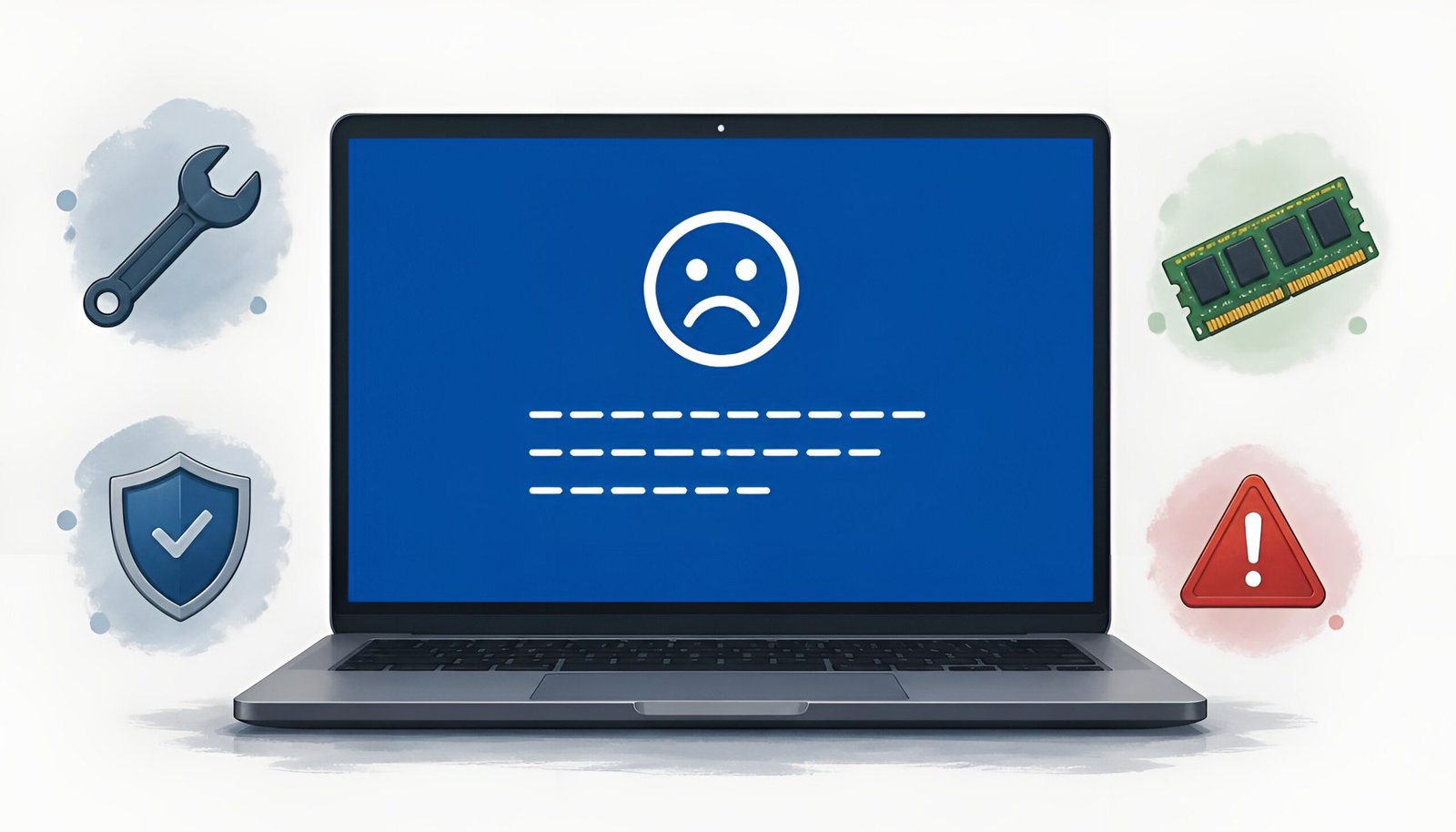
A blue screen of death is one of the scariest things a PC can throw at you. Your PC was running fine. Then, without warning, the screen goes black (or blue), you see a cryptic error message for a few seconds, and Windows restarts. You’re left staring at your desktop wondering what just happened and whether it’ll happen again.
The good news: a Blue Screen of Death is scary-looking but almost always fixable. The screen itself is actually a safety mechanism, Windows shuts down deliberately to prevent data corruption when it detects something seriously wrong. The error code it shows you is the key to diagnosing exactly what that something is.
This guide tells you what each common stop code means, what caused it, and exactly how to fix it, including what to do if Windows won’t boot at all.
Windows 11 note: Starting with Windows 11 22H2, Microsoft changed the BSOD background from blue to black. If you’re seeing a black screen with a sad face emoji and an error code, that’s the same thing. All fixes in this guide apply equally to both.
Already sorted your Blue Screen issue? Our guide on Windows Update not working covers the next most common Windows headache.
Step 1: Find and Write Down Your Error Code
The stop code appears on the crash screen for a few seconds before Windows restarts. It looks like this:
- A phrase in CAPITAL_LETTERS (e.g., CRITICAL_PROCESS_DIED), this is the stop code
- Sometimes a hex code starting with 0x (e.g., 0x0000001E)
- Sometimes a QR code you can scan with your phone for Microsoft’s support page
If you missed it: Windows saves crash details automatically. To find your stop code after the fact:
- Press Windows + R → type
eventvwr→ press Enter - Go to Windows Logs → System
- Look for events with the red error icon around the time of the crash
- The stop code appears in the event details
Or download BlueScreenView (free, from NirSoft), it reads Windows crash dump files and shows you every BSOD with its stop code, date, and the driver that caused it.
⬇ Download BlueScreenView – Free (NirSoft)
Step 2: Look Up Your Blue Screen of Death Stop Code
Find your stop code in this table for an immediate diagnosis.
| Stop Code | Most likely cause | First fix to try |
|---|---|---|
| CRITICAL_PROCESS_DIED | Corrupted system files or bad driver | SFC scan → DISM |
| KERNEL_SECURITY_CHECK_FAILURE | Driver conflict or GPU issue | Update/rollback GPU driver |
| PAGE_FAULT_IN_NONPAGED_AREA | Faulty RAM or corrupted driver | RAM test → driver update |
| IRQL_NOT_LESS_OR_EQUAL | Faulty driver or incompatible hardware | Update all drivers |
| SYSTEM_SERVICE_EXCEPTION | Buggy driver or corrupted system file | SFC scan → driver update |
| DPC_WATCHDOG_VIOLATION | SSD firmware issue or driver conflict | Update SSD firmware/drivers |
| MEMORY_MANAGEMENT | RAM problem or corrupted system files | RAM test |
| WHEA_UNCORRECTABLE_ERROR | Hardware failure (CPU, RAM, or PSU) | Check temperatures → hardware test |
Fix 1: Restart and Check for Windows Updates (Try This First)
If the BSOD happened once and hasn’t returned, a simple restart is often enough. Windows attempts automatic repair on reboot. If it doesn’t recur after a day of normal use, the crash may have been a one-time event.
After restarting, immediately check for Windows updates:
- Settings → Windows Update → Check for updates
- Install all available updates including optional driver updates
- Restart when prompted
Already up to date but still seeing this? Microsoft fixed one specific cause of KERNEL_SECURITY_CHECK_FAILURE (a GPU-related dxgmms2.sys bug) in the February 2026 Windows 11 update (Build 26200.7840). If you’re fully updated and still hitting this stop code, it’s a different underlying driver or GPU issue, follow the driver fix steps below.
Microsoft Official BSOD Troubleshooter
Fix 2: Update or Roll Back Drivers
Faulty drivers are the single most common cause of BSODs. This applies especially to graphics drivers, network adapters, and storage controllers.
If the BSOD started after installing a new driver: Roll it back.
- Press Windows + X → Device Manager
- Find the recently updated device (usually under Display adapters or Network adapters)
- Right-click → Properties → Driver tab → Roll Back Driver
- Restart and monitor for further crashes
If drivers are outdated: Update them.
- In Device Manager, look for devices with a yellow ⚠ icon
- Right-click → Update driver → Search automatically
- For GPU drivers specifically, download directly from the manufacturer:
⬇ NVIDIA Driver Download ⬇ AMD Driver Download ⬇ Intel Driver Download
Fix 3: Run SFC and DISM (Corrupted System Files)
Stop codes like CRITICAL_PROCESS_DIED and SYSTEM_SERVICE_EXCEPTION are often caused by corrupted Windows system files. These two commands scan for and repair them.
- Press Windows + X → Terminal (Admin) or Command Prompt (Admin)
- Type and press Enter:
sfc /scannow
- Wait for the scan to complete (5-15 minutes)
- If SFC reports errors but can’t fix them all, run DISM:
DISM /Online /Cleanup-Image /RestoreHealth
- Restart your PC after both scans complete
Fix 4: Test Your RAM
Stop codes like PAGE_FAULT_IN_NONPAGED_AREA and MEMORY_MANAGEMENT often point to faulty RAM. Windows has a built-in memory diagnostic tool.
- Press Windows + R → type
mdsched.exe→ press Enter - Click Restart now and check for problems
- Your PC restarts and runs the memory test automatically (takes 10-20 minutes)
- After the test, Windows restarts normally and shows results in the notification area
If errors are found, try reseating your RAM sticks (remove and firmly reinsert them). If errors persist after reseating, one of your RAM sticks may need to be replaced.
Fix 5: Check for Overheating
A PC that crashes with WHEA_UNCORRECTABLE_ERROR or random stop codes, especially during gaming or heavy tasks, may be overheating. Download a free temperature monitoring tool to check.
⬇ Download HWMonitor – Free Temperature Monitor
Safe temperature ranges while under load:
- CPU: Under 90°C (ideally under 80°C)
- GPU: Under 90°C (ideally under 85°C)
If temperatures are too high: clean dust from vents and fans, ensure the PC has adequate airflow, and check that all fans are spinning. For laptops, a cooling pad can help.
Fix 6: Uninstall Recent Software or Windows Updates
If BSODs started after installing something new, that’s your most likely culprit.
Uninstall recent software:
- Settings → Apps → Installed apps
- Sort by “Install date” to find recently installed apps
- Uninstall anything installed around the time BSODs began
Uninstall a recent Windows update:
- Settings → Windows Update → Update history
- Click Uninstall updates
- Remove the most recent update and restart
Fix 7: Boot Into Safe Mode (When Windows Won’t Start Normally)
If the BSOD appears every time Windows tries to boot, you need to get into Safe Mode to run fixes without the problematic driver loading.
Force Windows Recovery Environment (WinRE):
- Turn on your PC
- As soon as the Windows logo appears, hold the power button to force shutdown
- Repeat this 2-3 times
- Windows automatically loads the recovery environment
- Choose Advanced options → Startup Settings → Restart
- Press 4 or F4 for Safe Mode
Once in Safe Mode, run the fixes above (driver updates, SFC scan, uninstall recent software). Safe Mode loads only essential drivers, so if the BSOD doesn’t occur in Safe Mode, a third-party driver or software is almost certainly the cause.
Fix 8: System Restore
If you can identify roughly when the BSODs started, System Restore can revert Windows to a point before the problem began, without affecting your personal files.
- Search for “Create a restore point” in the Start menu → open it
- Click System Restore
- Choose a restore point from before the BSODs started
- Follow the prompts and restart
⚠️ Note: System Restore removes software and driver changes made after the restore point but does not delete personal files. Make sure you choose a restore point from before the BSODs started, not just the most recent one.
Last Resort: Reset or Reinstall Windows
If every fix above has failed and BSODs continue, a Windows reset or clean reinstall is the final option. This resolves virtually all software-related BSOD causes.
⬇ Download Windows 11 Installation Assistant – Microsoft
Reset this PC (keeps your files): Settings → System → Recovery → Reset this PC → Keep my files
Clean install (wipes everything, back up first): Use the Windows 11 Installation Assistant or Media Creation Tool to create a bootable USB and install Windows fresh.
Quick Fix Summary
| Situation | Fix to try first |
|---|---|
| BSOD happened once, PC is fine now | Restart + check Windows Update |
| BSOD after installing new driver | Roll back the driver |
| BSOD after Windows update | Uninstall the recent update |
| CRITICAL_PROCESS_DIED or SYSTEM_SERVICE_EXCEPTION | SFC scan → DISM |
| PAGE_FAULT or MEMORY_MANAGEMENT | RAM test |
| KERNEL_SECURITY_CHECK_FAILURE (GPU) | Confirm Feb 2026 update is installed, then check drivers |
| WHEA_UNCORRECTABLE_ERROR | Check temperatures with HWMonitor |
| Windows won’t boot at all | Force WinRE → Safe Mode |
| Nothing else worked | System Restore → Reset/Reinstall Windows |
Frequently Asked Questions
Is a Blue Screen of Death dangerous?
The BSOD itself is a protective mechanism, not the danger. It’s Windows shutting down to prevent worse damage. The underlying cause (like failing hardware or a corrupted driver) is what needs attention. A single BSOD is usually not a crisis. Repeated BSODs with the same stop code indicate a real problem that should be diagnosed and fixed.
Why does my Windows 11 show a black screen instead of blue?
Microsoft changed the BSOD background color from blue to black starting with Windows 11 22H2 to match Windows 11’s dark design language. The black screen with a sad face emoji and stop code is exactly the same as the classic blue screen, same causes, same fixes.
Can a virus cause a Blue Screen of Death?
Yes, though it’s uncommon. Some malware corrupts system files or drivers in ways that trigger BSODs. Run a full scan with Windows Defender or another trusted antivirus tool if other fixes haven’t resolved the issue.
My BSOD stop code isn’t in your table, what do I do?
Search the exact stop code on Microsoft’s Stop Code Reference page, it lists all 300+ Windows stop codes with official descriptions. For most codes, updating drivers and running SFC/DISM are still the right first steps.
How do I prevent BSODs from happening again?
Keep Windows updated, keep drivers current (especially GPU and network drivers), maintain at least 15% free space on your C: drive, and run a RAM test periodically if your PC is more than a few years old. Most BSODs are caused by driver issues that regular updates prevent.
Final Thoughts
A Blue Screen of Death is alarming the first time it happens. But in most cases, the stop code points directly to the cause, usually a driver, a Windows update conflict, or corrupted system files, and the fix is straightforward. Work through the steps above in order, starting with the simplest checks, and most BSODs are resolved within 30 minutes.
If hardware failure is the cause (bad RAM, failing drive, overheating), the diagnostics above will reveal it, and catching it early prevents data loss.